
虽然 Kindle 已经彻底退出中国了,但我主要的电子书阅读器设备仍然是那台 Kindle Oasis 3。我喜欢它舒适的显示效果、轻巧的手感,以及封闭系统带来的好处——没有干扰、更专注地阅读。

书从哪来?
Kindle 退出中国后,首先要解决的就是「书从哪来」的问题。
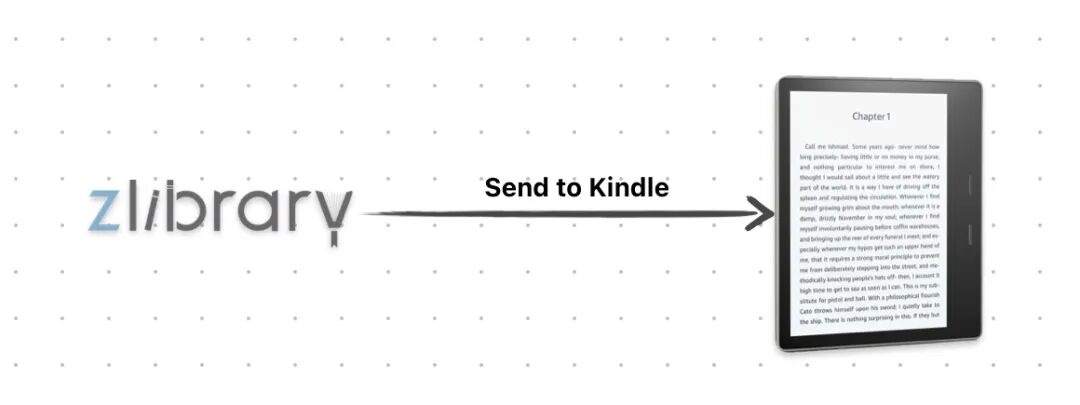
我的方法很简单:z-lib 搜索并下载电子书 → Send to Kindle 发送到 Kindle 书库 → Kindle 联网下载电子书。整个过程在手机上就能搞定,并且是零成本。
先注册个美区 Amazon 账号
首先要注册一个美区亚马逊(www.amazon.com)账号,并在 Kindle 上登录。有了美区 Amazon 账号,就可以使用「Send to Kindle」功能。它可以把我下载的 EPUB 电子书、PDF 文档等资源,通过网络传送到 Kindle 里。
下载 EPUB 格式电子书
我基本在 Z-Library上下载。这是一个免费的全球电子书下载网站,中文电子书资源也相当丰富。未注册用户每天可以下载 5 本书,注册后可以下载 10本(对我来说绰绰有余了),付费高级权益可以解锁更多每日下载数、无限速、一键发送至 Kindle 等功能。
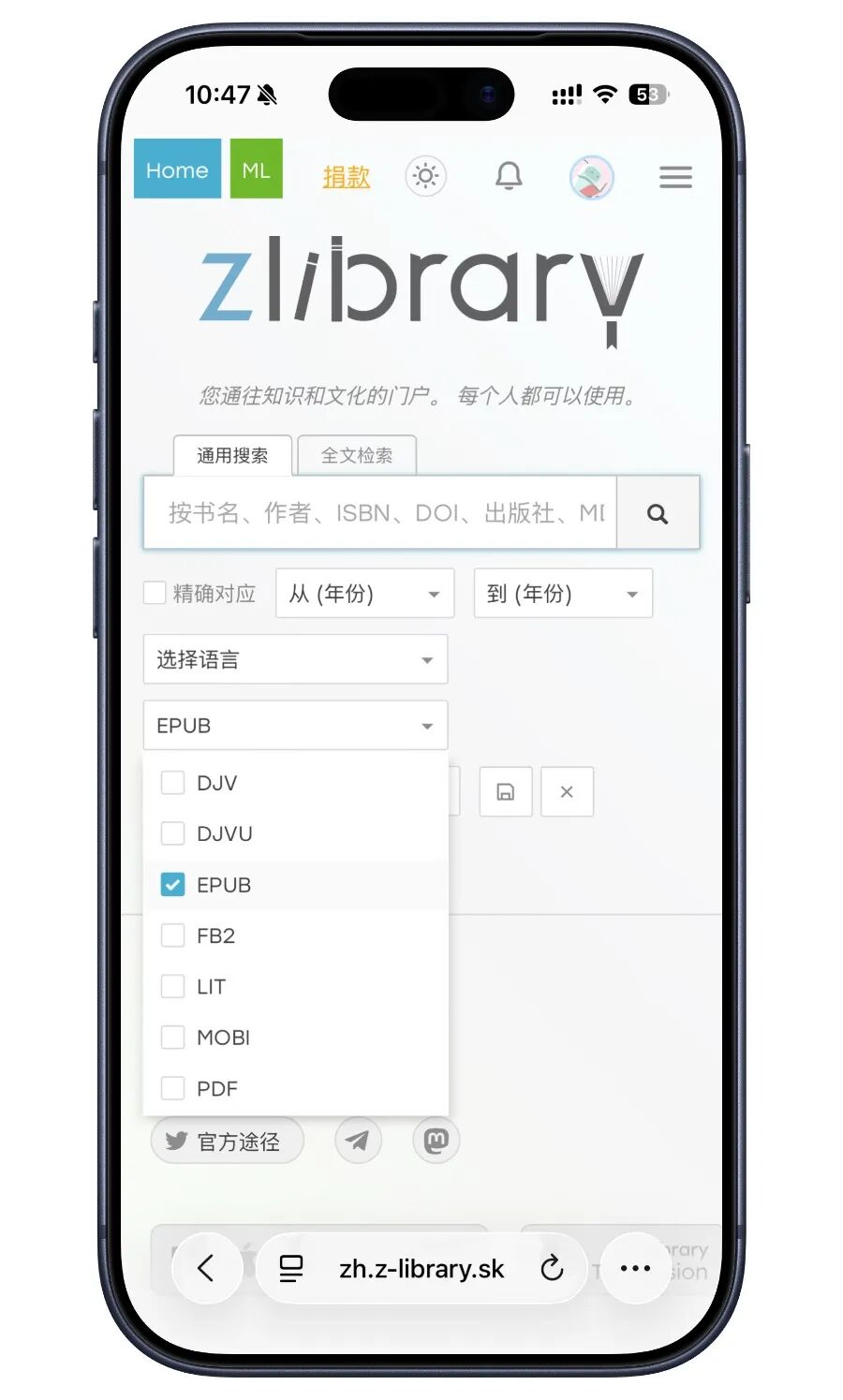
Z-Library 提供的电子书格式也多,包括 Azw3、EPUB、PDF 等。我会首选 EPUB,EPUB 是开放电子书格式的一个标准,在 Mac、Windows、iOS、安卓上都可以打开,甚至「微信读书」App 也支持直接打开阅读。
用手机浏览器打开 Z-Library 网站(需要开代理上网),输入搜索书名,可以使用筛选只展示 EPUB 格式的结果。选择一个搜索结果,点进去下载就行了,文件默认会保存到 iOS 「下载」文件夹。
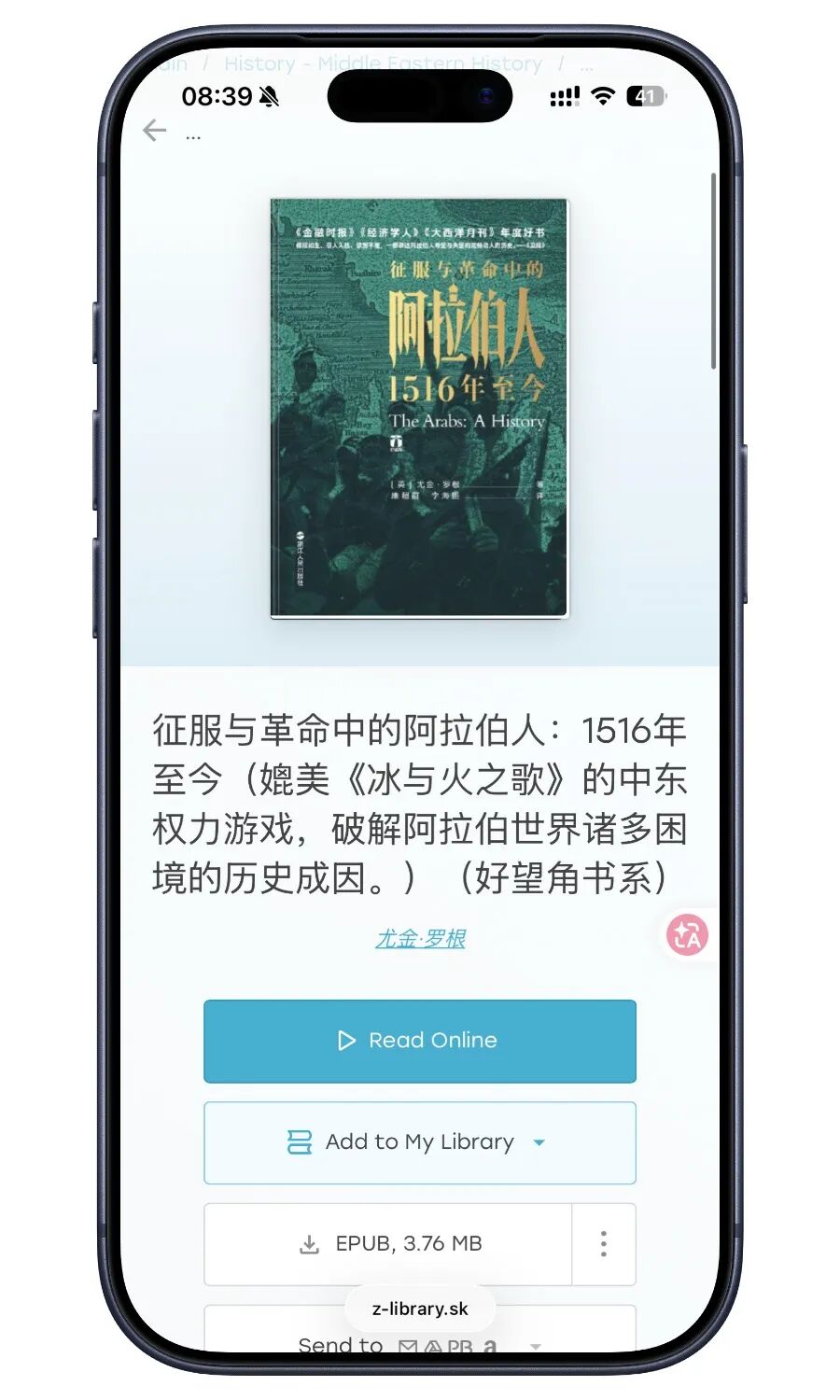
Z-Library 也提供直接发送电子书到 Kindle 的服务,不过是付费的。我都是下载下来然后 Push to Kindle,也不麻烦。
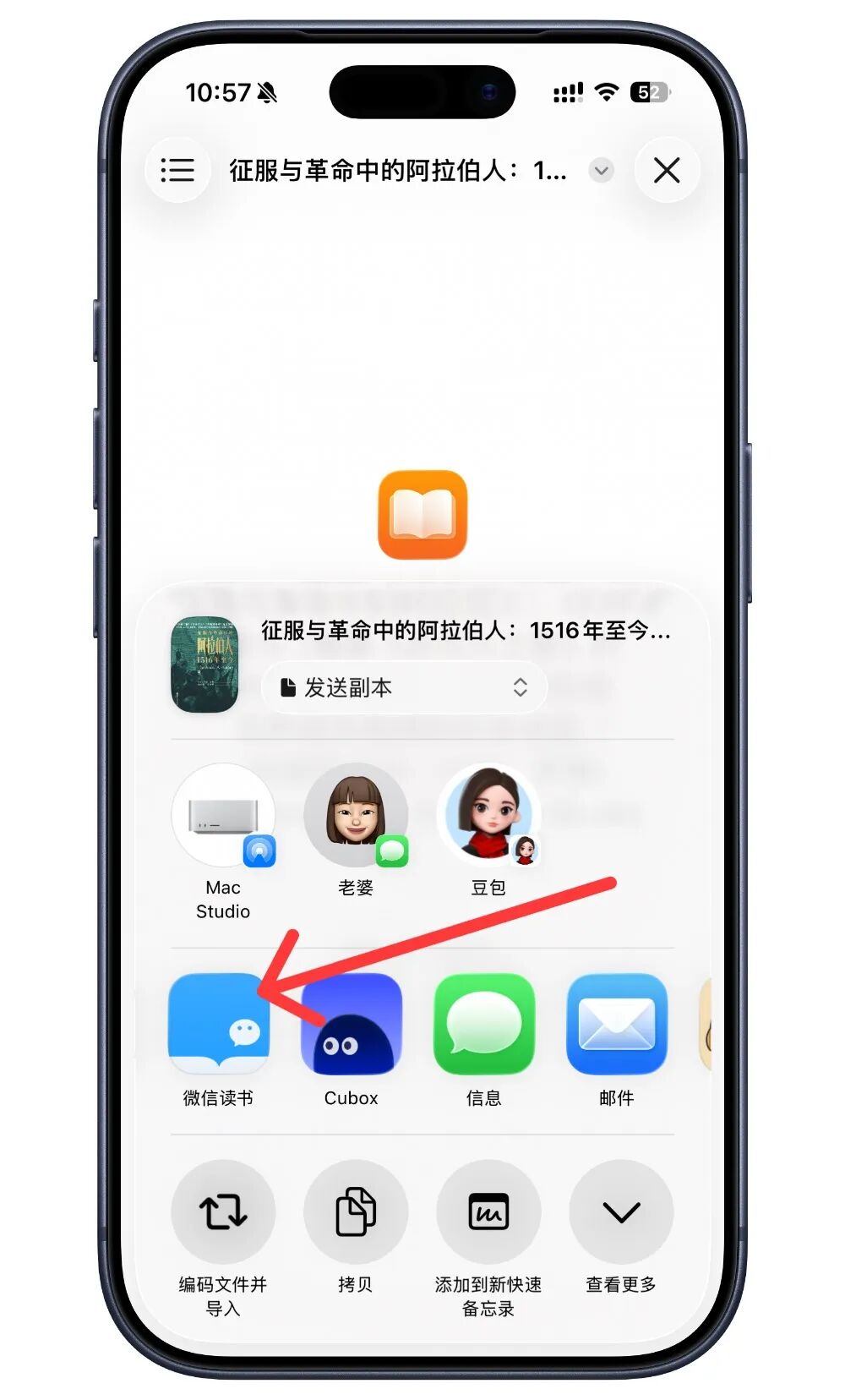
下载的 EPUB 格式电子书可以直接用苹果自己的「图书」App 打开,也可以选择用微信读书 App 打开。
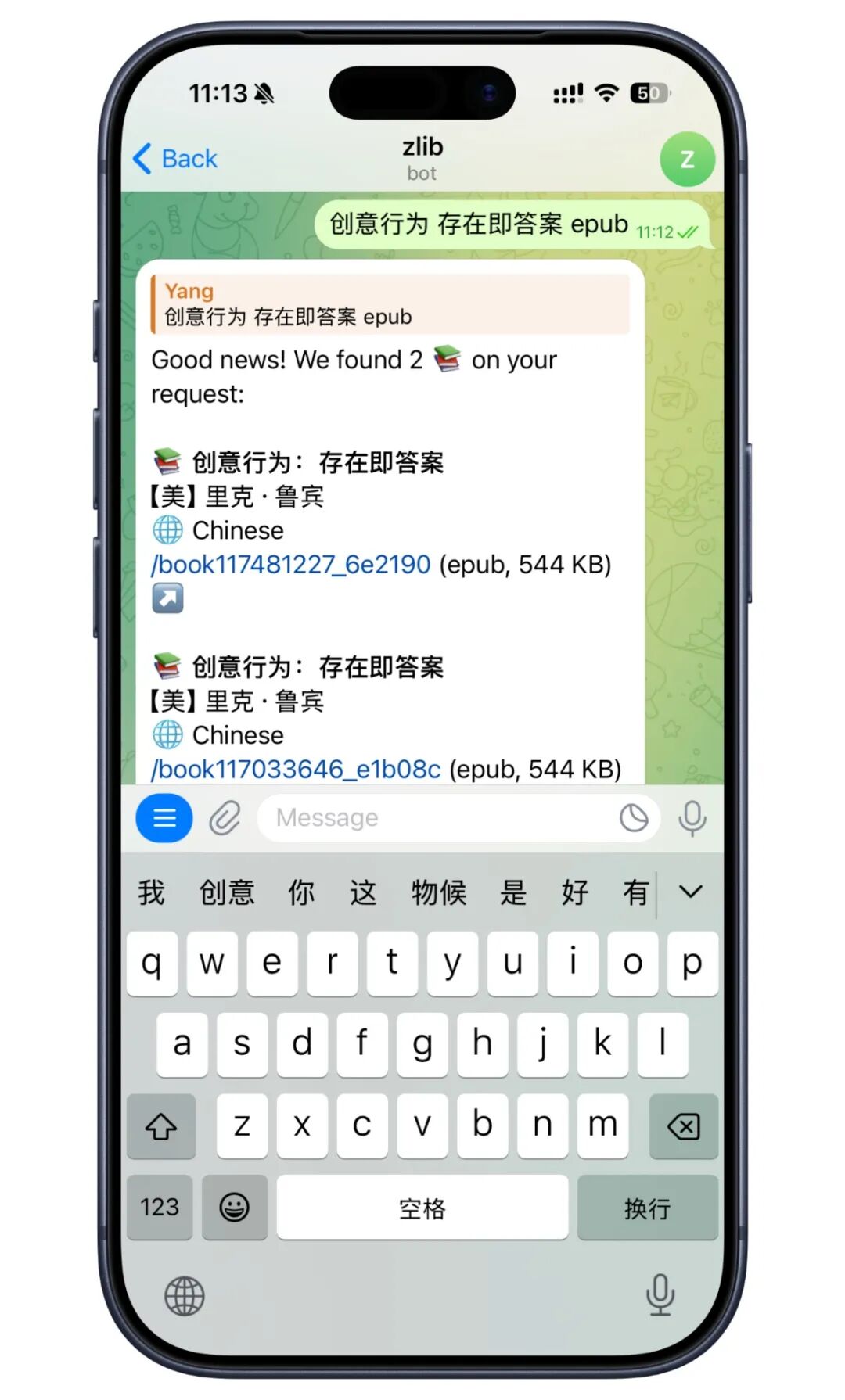
因为 Z-Library 知名度太高了,因此有很多仿冒网站,并且因为一些原因,官方网址也经常会变。如果你用 Tg,也可以添加 Tg 机器人,只要给 bot 发送你想要下载的书的书名以及格式(如:刻意练习 epub),就会收到图书下载结果,点击一个结果就会下载到设备上。
发到 Kindle 上
手机浏览器打开 Amazon Send to Kindle 网页并登录,点「Select files」-「选取文件」,选择刚才下载的 EPUB 电子书文件。
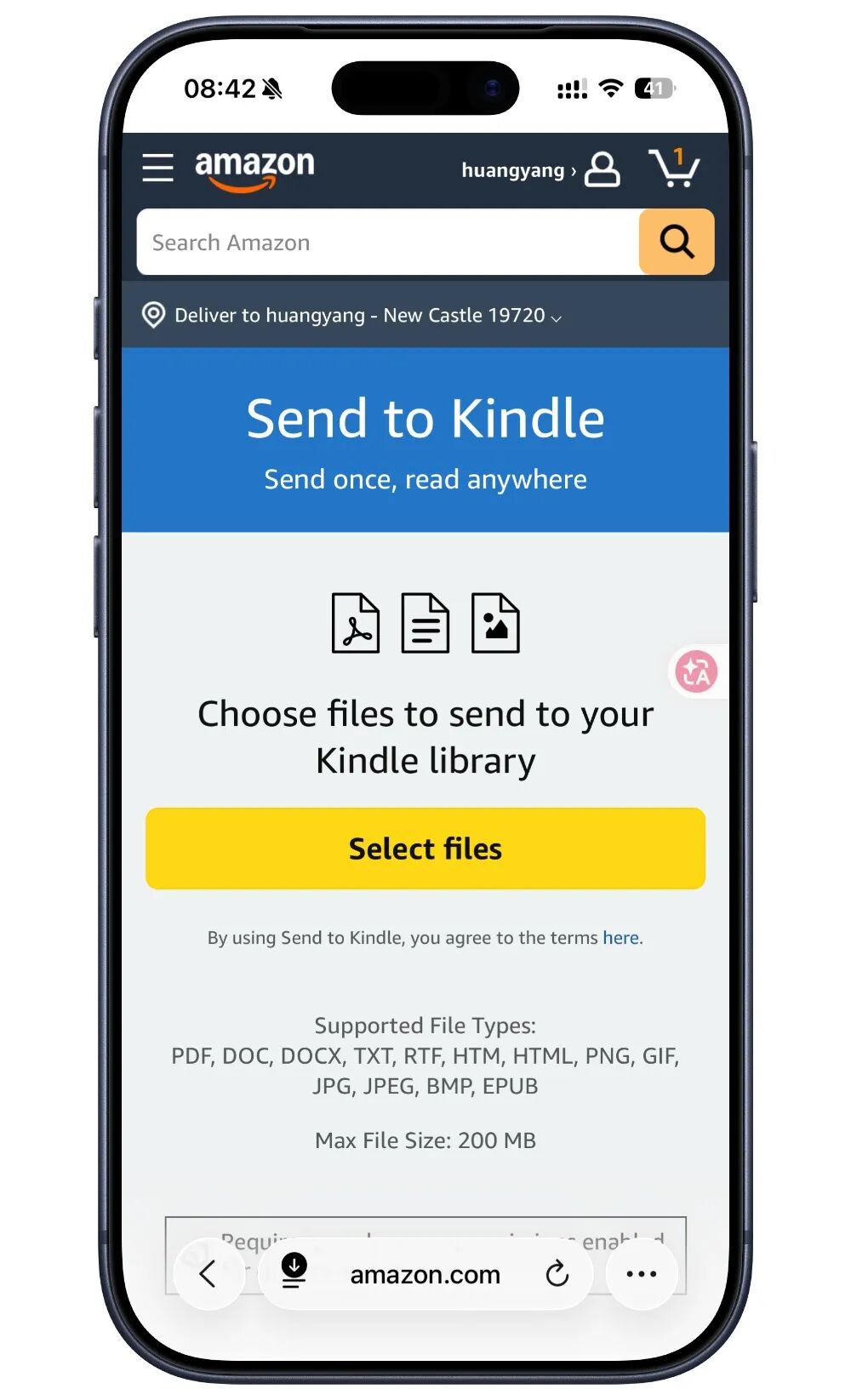
勾选「Add to your library」并点「Send」发送就行了。稍等片刻,这本书就会发送到你的 Amazon 书库里。
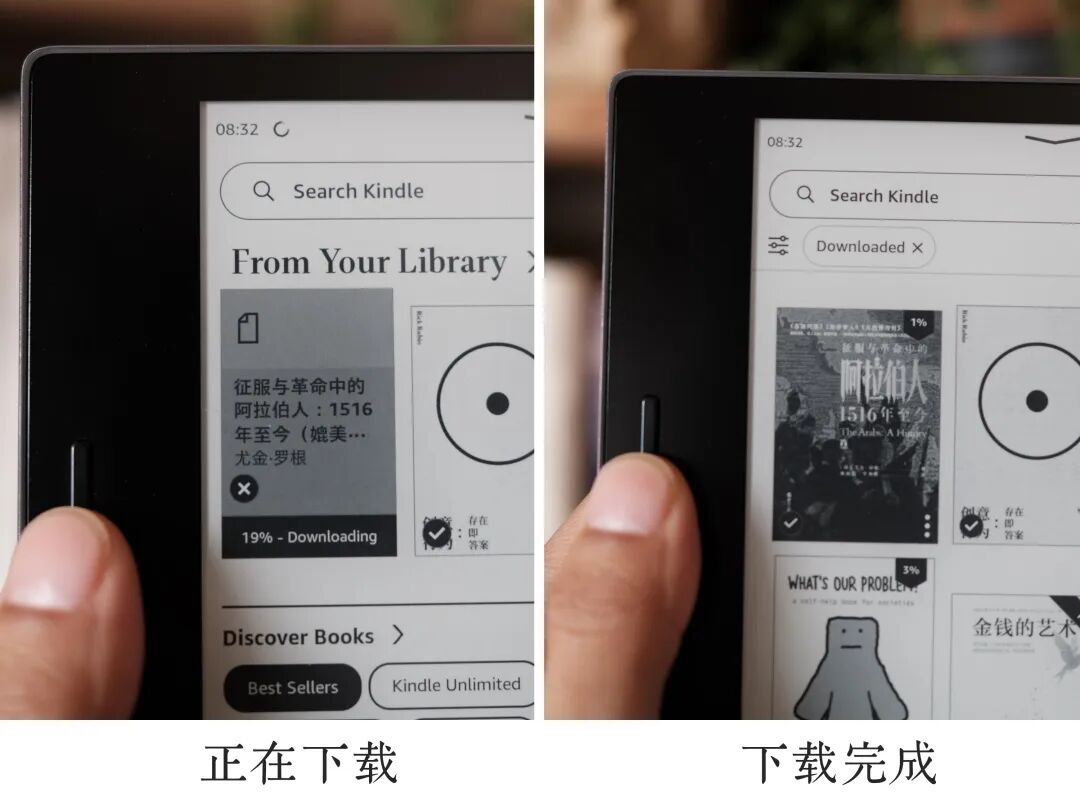
打开 Kindle 连一下网,就能看 library 里的到这本书,点击下载,然后就可以愉快的阅读了。
把网络文章 Send 到 kindle 稍后阅读
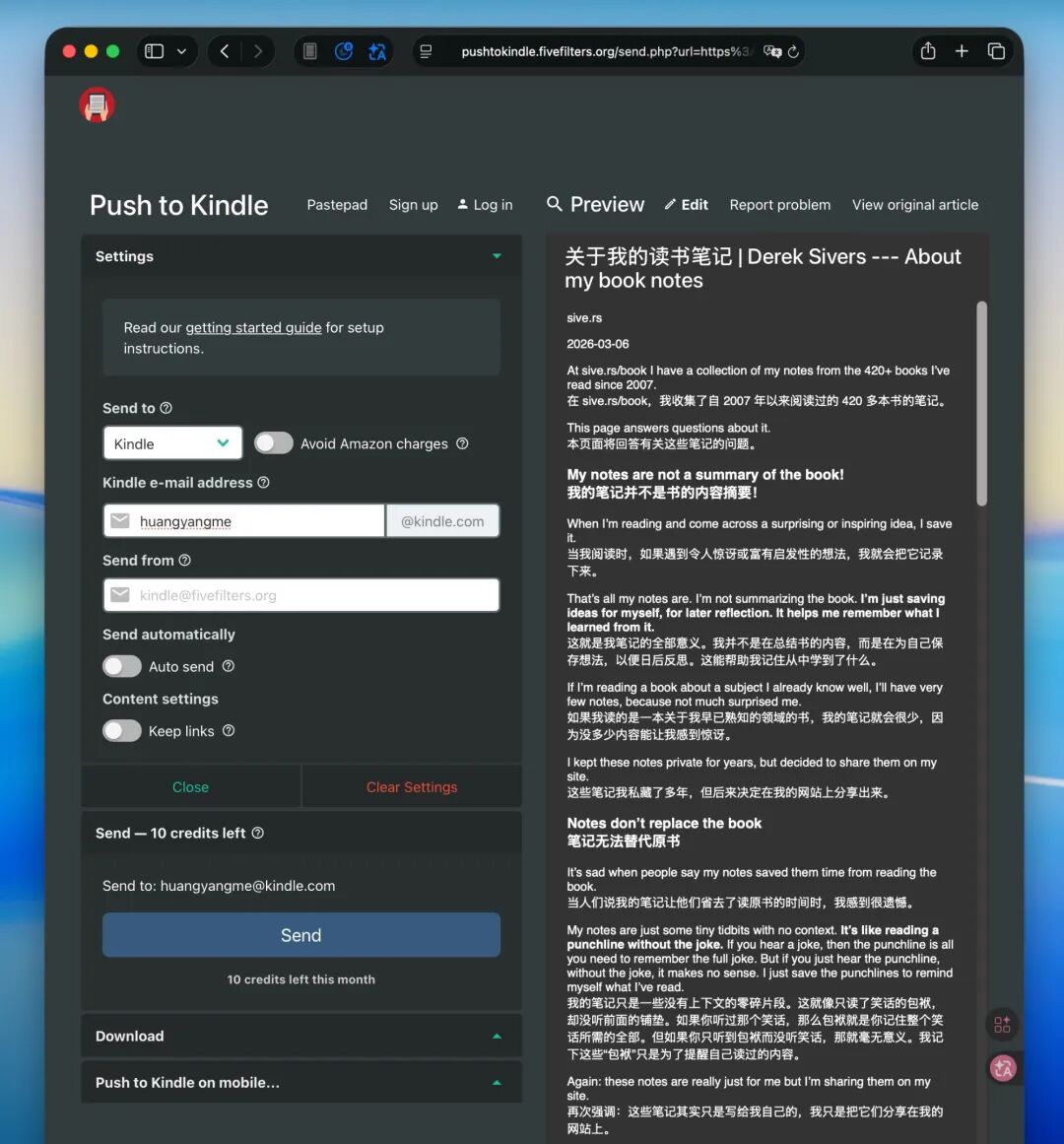
有时候遇到一些感兴趣的网络长文,我会用「Push to Kindle」这个第三方 Safari 浏览器插件一键把文章发送到 Kindle 里,等有空的时候再集中阅读。
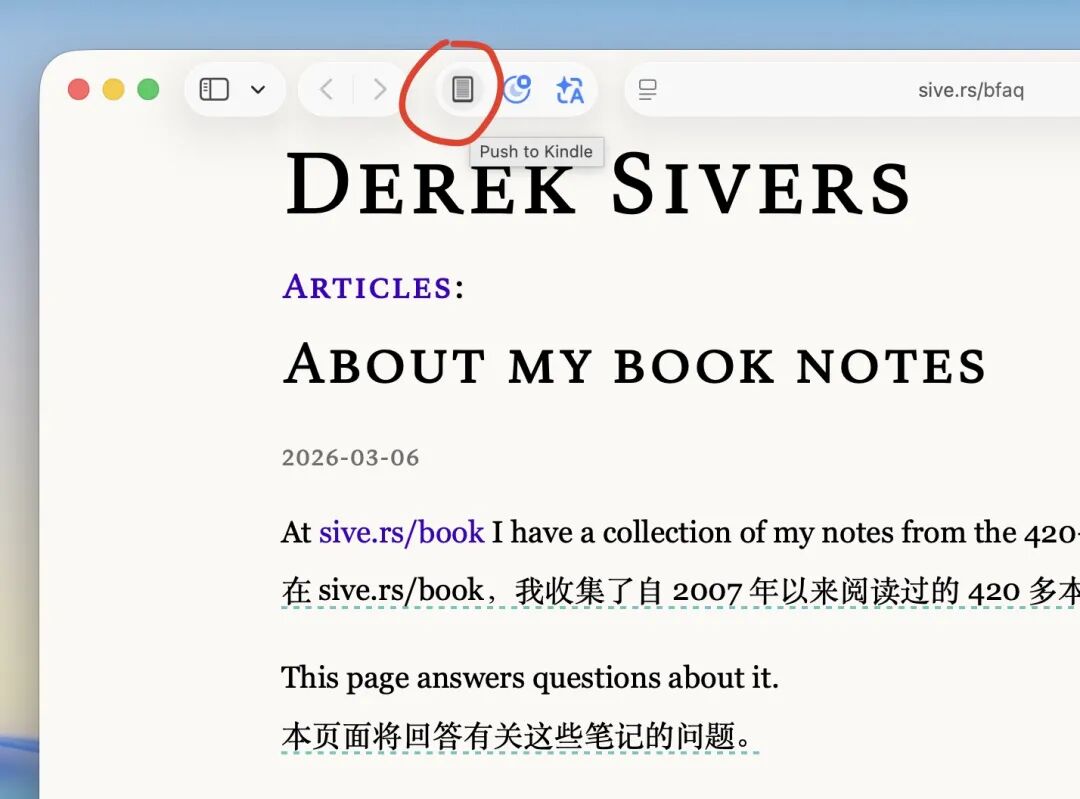
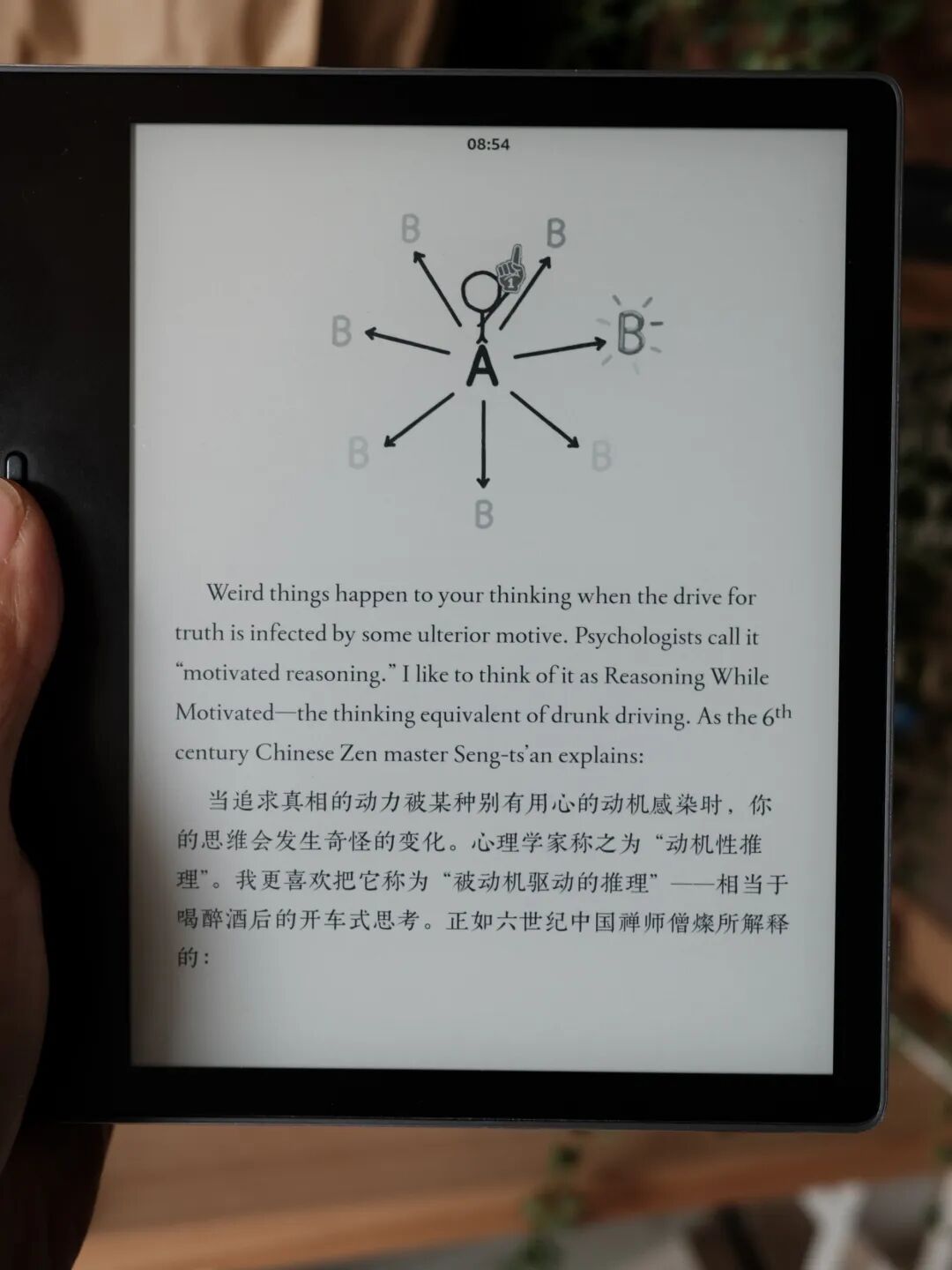
如果打开的是英文文章,另外一个浏览器插件「沉浸式翻译」会自动翻译成中英双语,再点「Push to Kindle」,也会抓取并发送翻译好的版本到 Kindle 上,一气呵成。
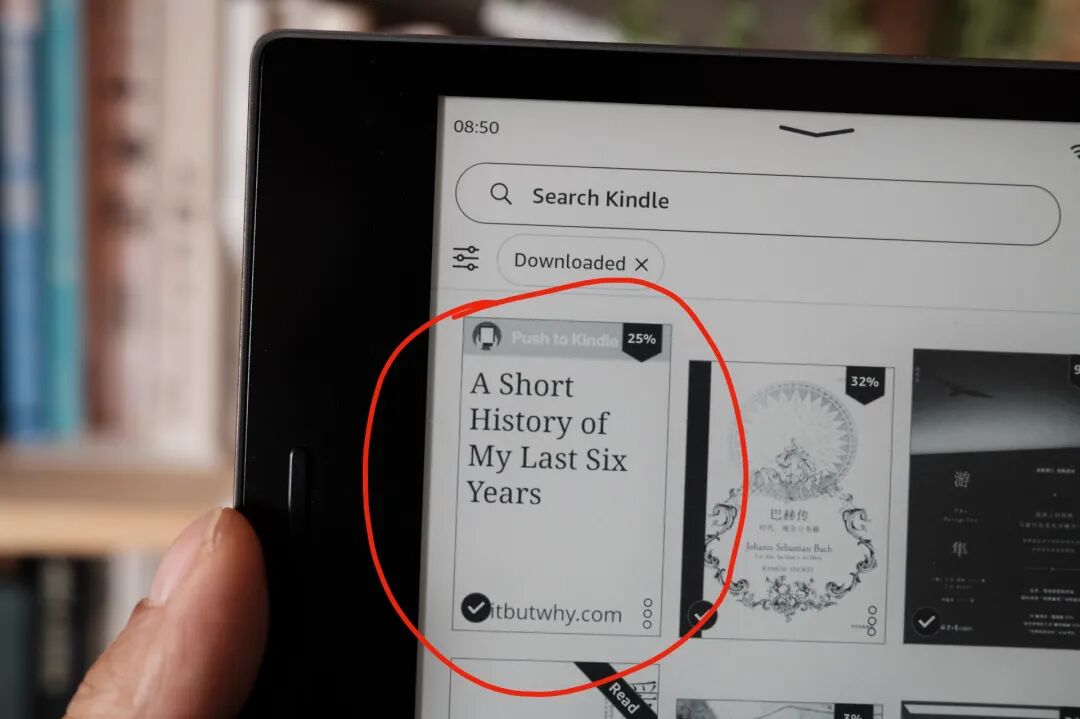
Instapaper 也有保存并推送文章到 Kindle 上的功能,并且还能实现当文章积攒到一定篇数或者按一定的时间频率,一次集中推送到 Kindle 上,这样可以避免 kindle 上一篇文章就是一个文档造成的难以管理。
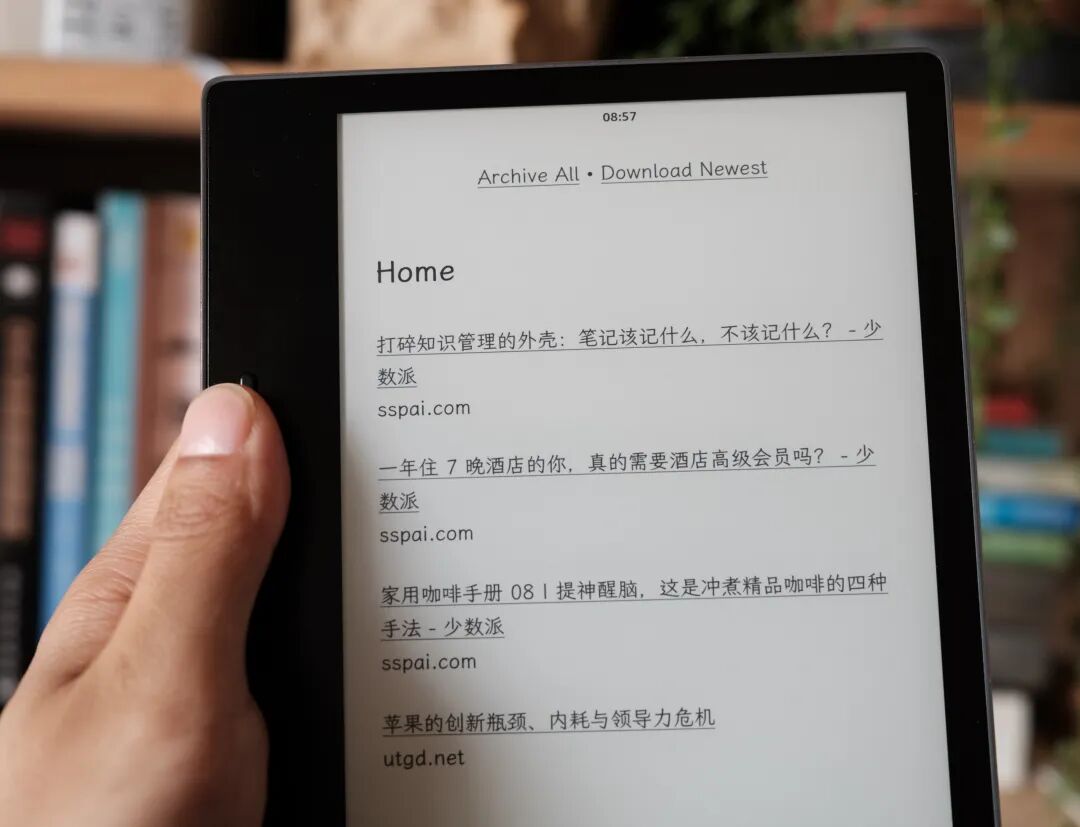
不过这个功能最近变成收费功能(还不便宜),并且无法实现我想要的「翻译后保存」,我也就没再用了。
我也计划未来自己写一个能实现「一键保存、翻译、集中发送」的应用程序。
我用什么字体?
Kindle 内置的英文字体都很棒,但内置的中文字体就只有「黑体」和「宋体」。我觉得阅读字体用「黑体」少了点书味,「宋体」又稍显平庸。好在 Kindle 支持安装字体,并且非常简单。
我现在是用「思源宋体」和「霞鹜文楷 轻便版 Medium」这两款开源字体。
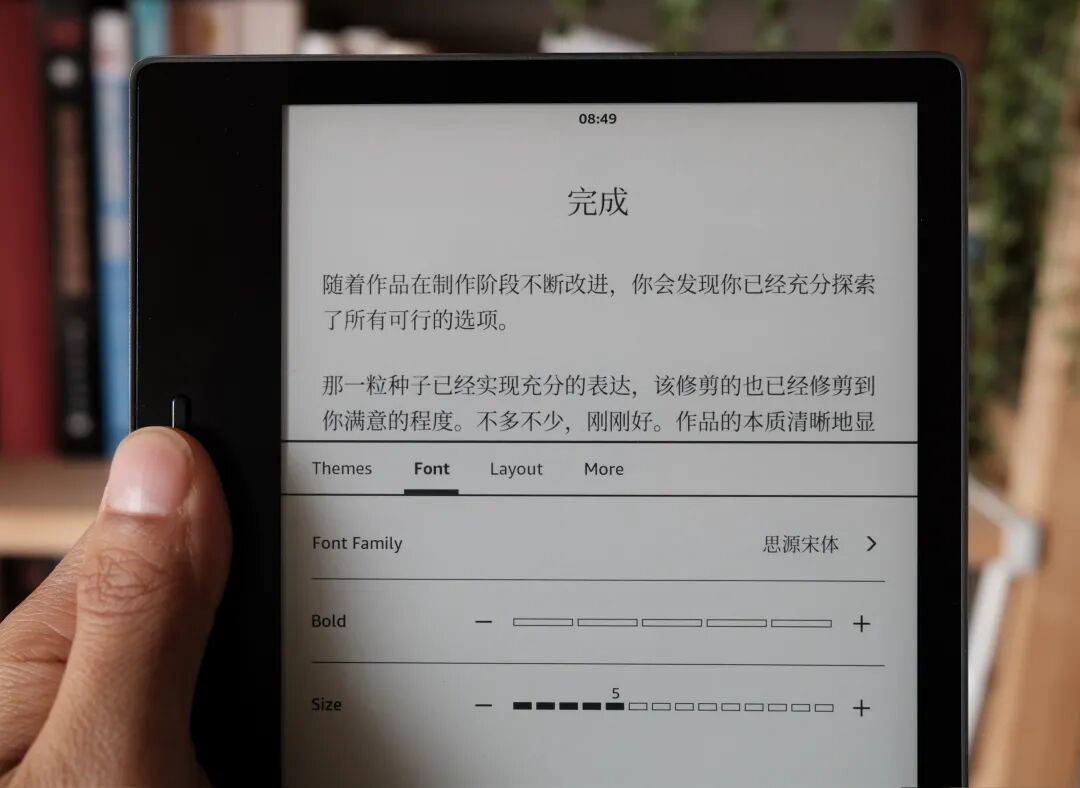
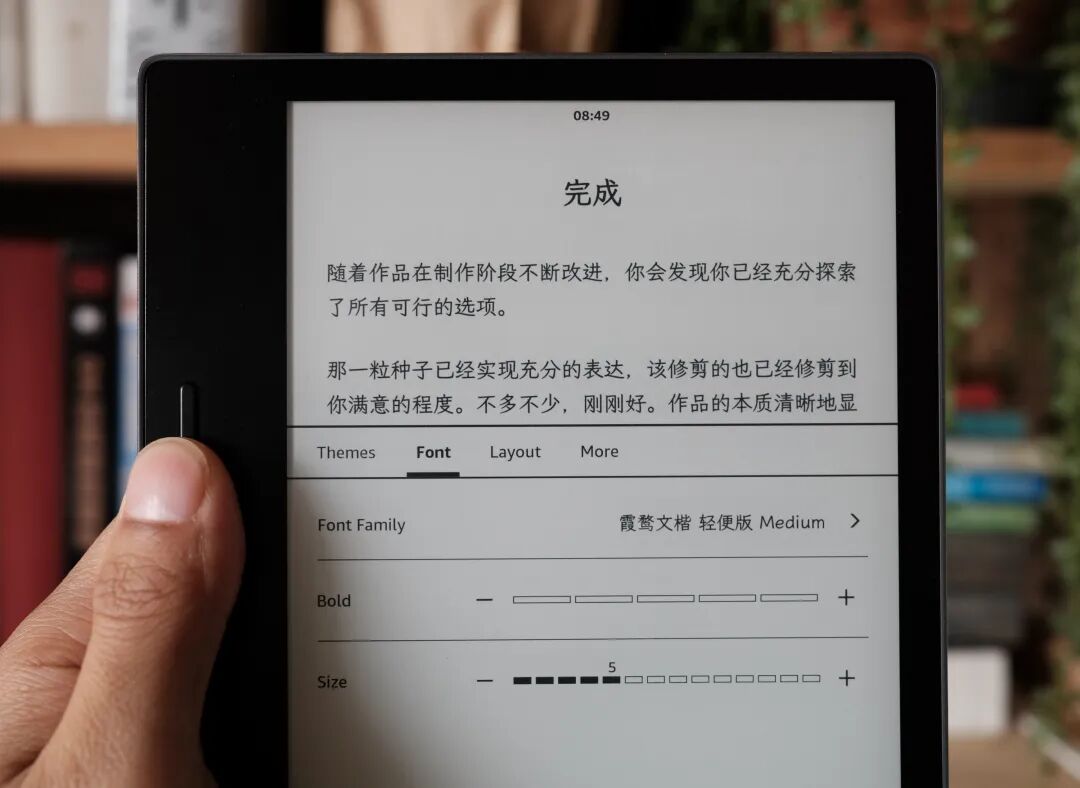
关于字号,白天阅读我习惯用 5 号,易读,并且一页能显示更多内容。夜间阅读会用更大一点的 6 或 7 号,并且会用「黑体」,看起来似乎没那么费力,夜间阅读,开一盏小灯,暗色模式,字体调成黑体,更大字号
拒绝冰手
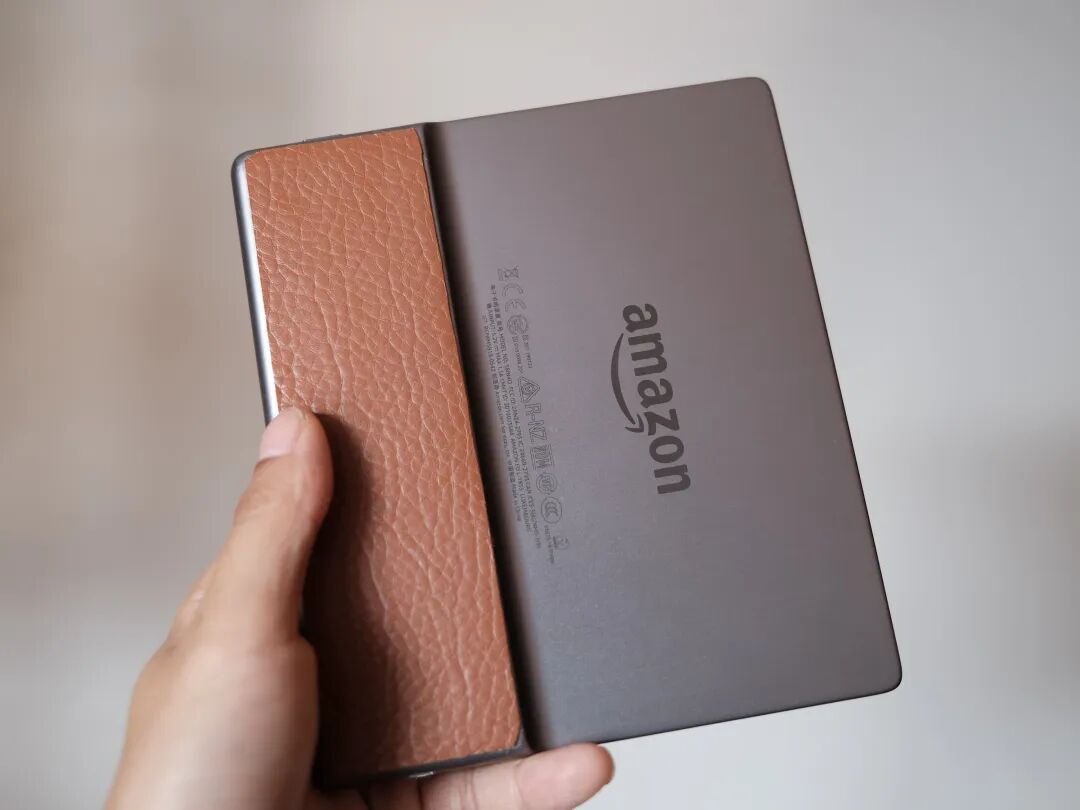
虽然已经是发布快 7 年前的老产品了,但 Kindle Oasis 3 工业设计和做工品质放到现在依然非常出色。不过金属背壳在冬季的时候有些冰手,家属帮我用她做手工剩下的皮料(非真皮)裁成适合的大小贴在背壳握持处,既好看,也多了一些「温度」。
写在最后
在这个短视频占据绝对主流、信息严重泛滥、人的注意力变得越来越稀缺和珍贵的时代,在纸质书和 kindle 上阅读长文字,给我提供了一个数字隔离的暂时入口。
而我选择 Kindle 作为文字阅读的主要载体,不是因为它能用来阅读,而是因为它只能用来阅读。
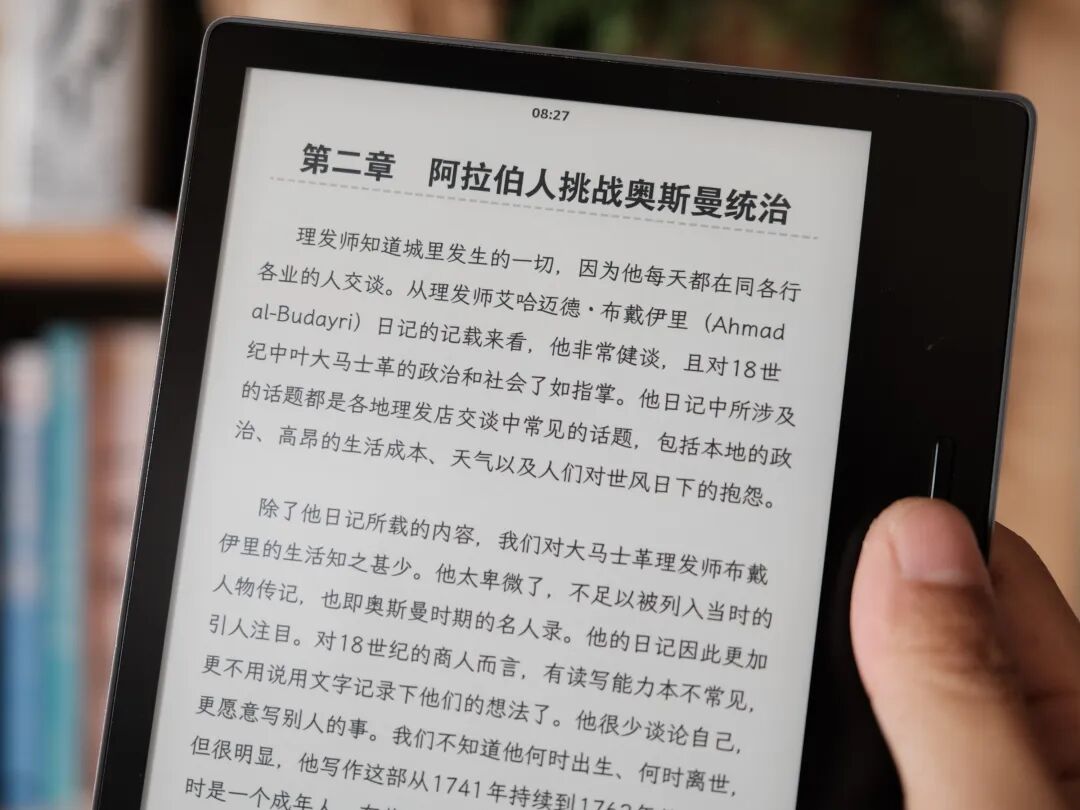
Although Kindle has completely withdrawn from China, my main e-book reader device is still the Kindle Oasis 3. I love its comfortable display, lightweight feel, and the benefits of a closed system—no distractions, just focused reading.
Where do I get my books?
After Kindle exited China, the first problem to solve was “Where do I get my books?”
My solution is simple: search and download e-books from z-lib → send them to my Kindle library using Send to Kindle → and download them on my Kindle. The entire process can be done on my phone at zero cost.
First, register a US Amazon account
First, register a US Amazon account at www.amazon.com and log in to your Kindle. With a US Amazon account, you can use the "Send to Kindle" feature to wirelessly transfer downloaded EPUB ebooks, PDF documents, and other resources to your Kindle.
Download EPUB-format e-books
I usually download from Z-Library. It’s a free global e-book download site with a rich collection of Chinese e-books. Unregistered users can download 5 books per day; registered users can download 10 (more than enough for me). Paid premium features unlock more downloads, no speed limits, and one-click sending to Kindle.
Z-Library offers multiple formats including Azw3, EPUB, and PDF. I prefer EPUB because it’s an open standard that works on Mac, Windows, iOS, Android, and even WeChat Reading.
I open the Z-Library website on my phone browser (with VPN), search for a book, filter by EPUB format, select a result, and download it — the file saves to my iOS Downloads folder by default.
Z-Library also offers direct sending to Kindle, but it’s paid. I prefer to download and then push to Kindle manually — not too much trouble.
Downloaded EPUBs can be opened immediately in Apple’s Books app or WeChat Reading app.
Since Z-Library is so popular, there are many fake websites, and its official URL sometimes changes due to censorship. If you use Telegram, you can add the Z-Library bot: just send it the book name and format (e.g., “Deliberate Practice epub”), and it’ll reply with download links.
Send to Kindle
Open the Amazon Send to Kindle webpage on my phone browser, log in, click “Select files”, choose the downloaded EPUB, check “Add to your library”, and click “Send”. In a few moments, the book appears in my Amazon library.
Open Kindle, connect to Wi-Fi, find the book in the library, download it, and start reading — it’s that simple.
Sending web articles to Kindle for later reading
Sometimes I find long web articles I want to read later. I use the “Push to Kindle” Safari extension to send them directly to Kindle.
If the article is in English, I use the “Immersive Translation” extension to translate it into Chinese (or bilingual), then push the translated version to Kindle — seamless.
Instapaper also has a feature to save and send articles to Kindle, with an option to batch-send multiple articles at once, which helps manage the document list better on Kindle.
However, this feature became paid recently (quite expensive), and it doesn’t support saving after translation, so I stopped using it. I’m planning to write my own app that does saving, translating, and batch sending — stay tuned.
What font do I use?
Kindle’s built-in English fonts are great, but the Chinese fonts (Heiti and Songti) aren’t ideal. “Heiti” lacks charm, and “Songti” is too plain. Luckily, Kindle supports custom fonts — easy to install.
I’m now using “Source Han Serif” and “LXGW WenKai Light Medium” — both open-source and perfect for reading.
For font size, I use size 5 during the day (clear and more words per page), and size 6 or 7 at night with soft lighting — larger fonts are easier on the eyes in low light, especially with a dark theme and black font.
Keeping hands warm
The Kindle Oasis 3’s aluminum body is beautifully made, but cold in winter. My wife helped me cut a piece of leftover leather (non-genuine) to fit the back where I hold it — adds warmth and style.
Final thoughts
In an age dominated by short videos and saturated information, reading long texts on paper or Kindle offers a temporary escape from the digital noise. I chose Kindle not just for reading, but because it *only* reads — no distractions, just pure focus on the word.