
原文链接:https://mp.weixin.qq.com/s/wzRhY7kOgBG4bts3nIt9XQ

Kindle 使用指南
本文只对我个人用过的Kindle传书方法做介绍 ,如有其他方法和疑问,大家也可在评论区留言,小红书也有很多相关介绍。
(我很久之前就设置好kindle传书了,所以很多步骤也不太记得了,如果有写错的地方欢迎大家在评论区指出来!)
下面为大家依次介绍3种kindle传书的方法:亚马逊的Send to Kindle、QQ邮箱、数据线。
传书的时候kindle需要联网,传完在kindle加载完电子书就可以断网看了。
Send to Kindle
我最常用的方法是Send to Kindle,我觉得很方便。因为我通常都是用电脑在Z-library和Anna's Archive网站(这两个电子书网站在前一篇推文有介绍)下载电子书,下载完电子书直接把文件拖入Send to Kindle发送到Kindle就可以了。
文件大小不能超过200MB,支持的格式有:EPUB、PDF、TXT、DOC、DOCX、RTF、HTM、HTML、PNG、GIF、JPG、JPEG、BMP。不支持传MOBI、AZW3格式。
这个方法前期注册、添加邮箱这些步骤麻烦一点,但一劳永逸啊!以后只要直接打开Send to Kindle,直接把电子书拖进后点上传就可以了!按照下面的步骤一步一步来就可以。
1.注册美亚账号
①首先需要注销掉你Kindle里面的中国账号。
点开设置--您的账户-注销设备
(注销原账户前请先备份好原账户的数据,有的人反映注销后书架会不见)
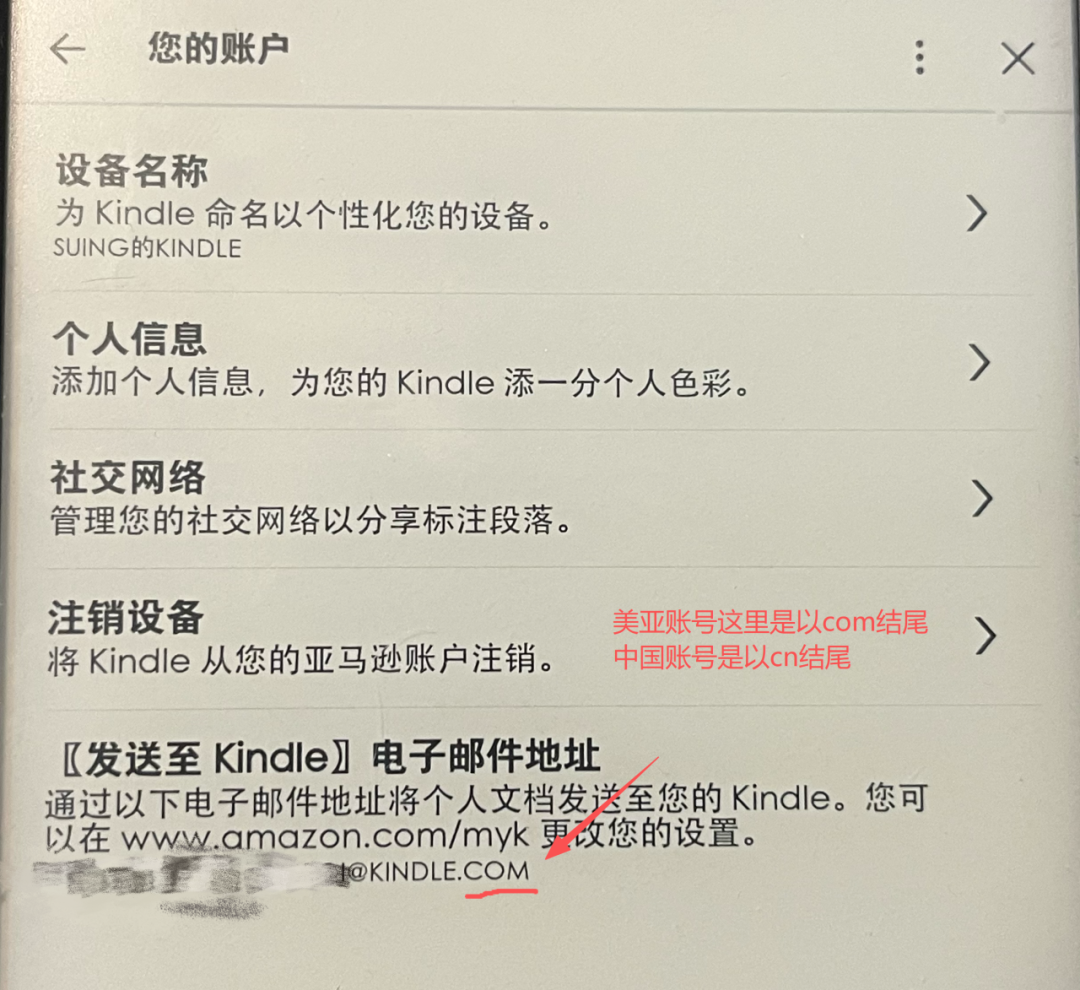
中国账号电子邮件是以cn结尾,美亚账号是以com结尾,kindle已经退出中国市场,但是亚马逊没有,所以亚马逊中国区运营还是在的,需要把Kindle账号设置成美区。
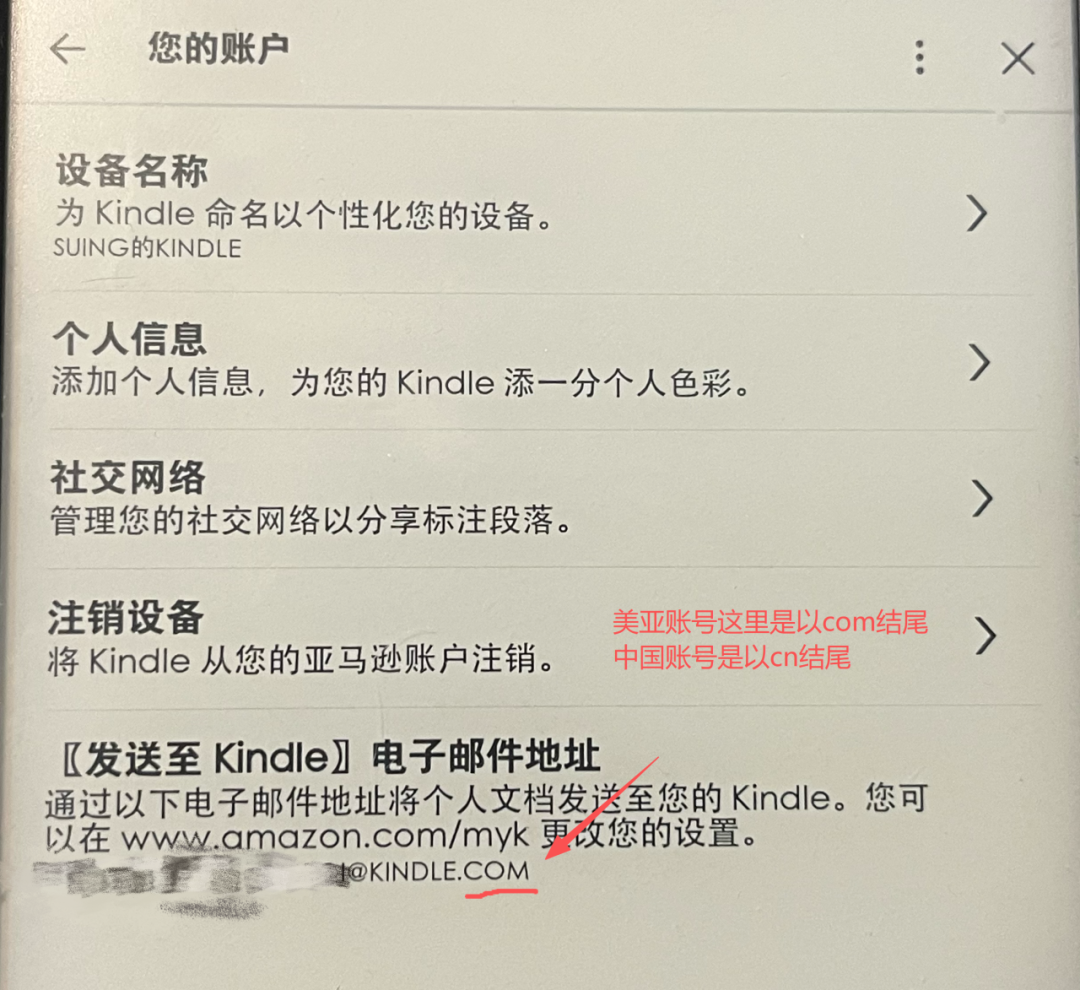
“发送至Kindle电子邮件地址”这里最下边的以.com结尾的邮箱,就是你这个Kindle用来接收电子书的邮箱。
搞清楚这个,就很容易弄了,包括用其他邮箱发送电子书到Kindle,也是只需要收件人邮箱是你这个Kindle的电子邮件就可以!
②在Kindle设备上重新注册账号,只需要地区选美国,填手机号可以填中国手机号,其他注册流程与原来一样。(是在看电子书的这个Kindle设备上重新注册)
输入邮箱账号(不要用手机号注册)--创建账户--地区选美国--下一步--创建您的亚马逊账户--输入新邮箱地址(不要用之前注册过Kindle的 邮箱)--添加手机号--选CN+86--添加卡号可跳过。
2.登录亚马逊官网
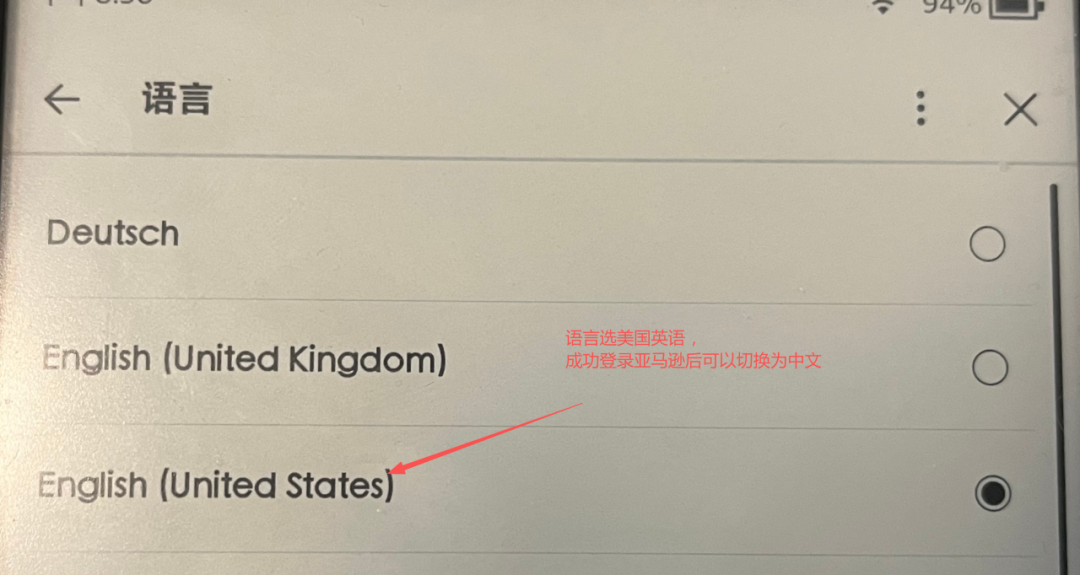
①先把Kindle的语言设置成美国英语↓
②登录亚马逊美国站
亚马逊官网不需要连接VPN。
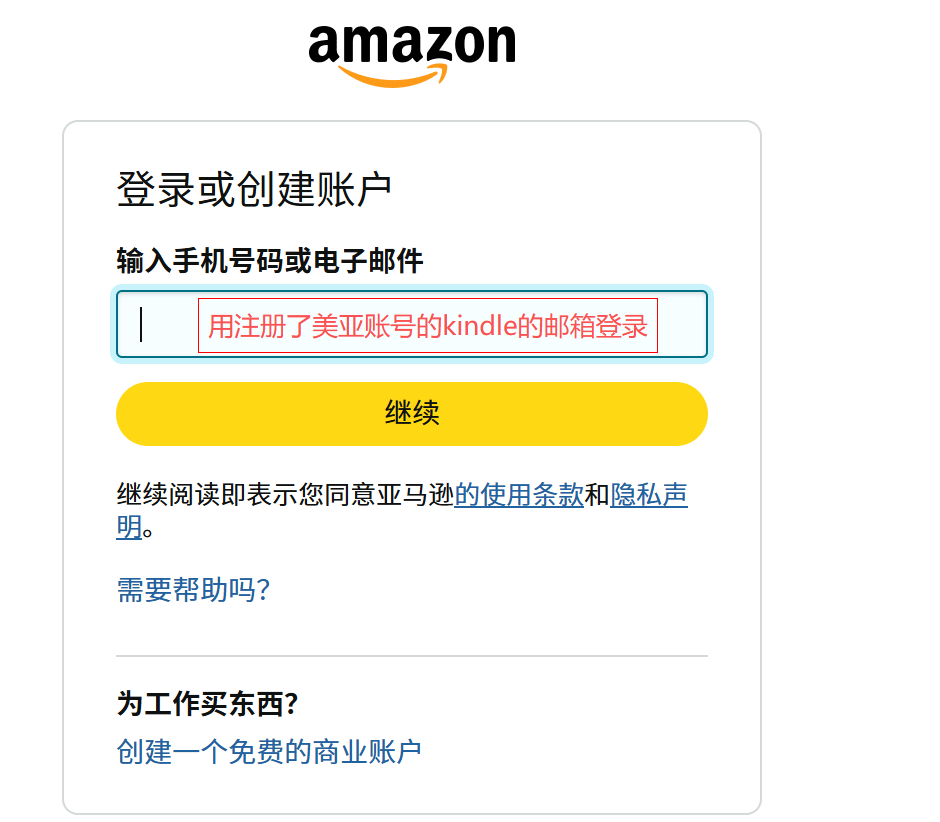
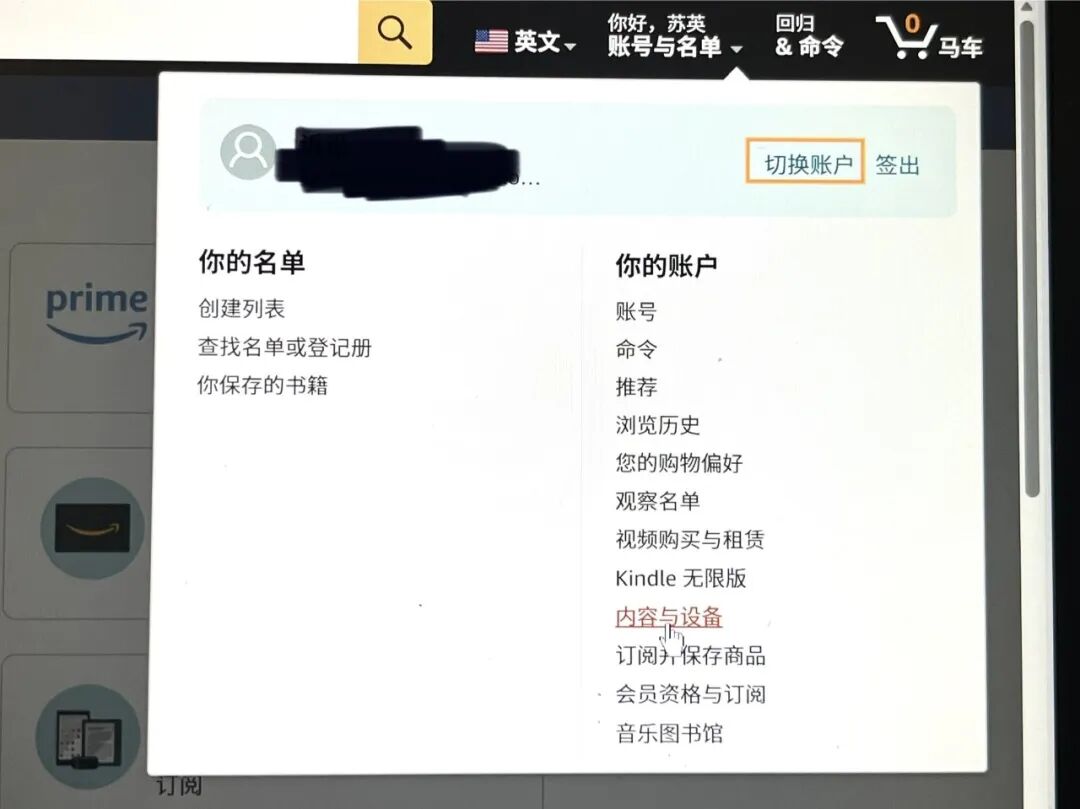
用你注册kindle时填写的邮箱账号登录亚马逊。在“内容与设备”里就能看见你的Kindle。
我是用网页自带的翻译,把网站翻译成中文的,所以每个人的亚马逊官网显示的中文界面会不太一样 ,如果找不到选项就都点一下看看,中文意思相近就可以。
③添加信任邮箱
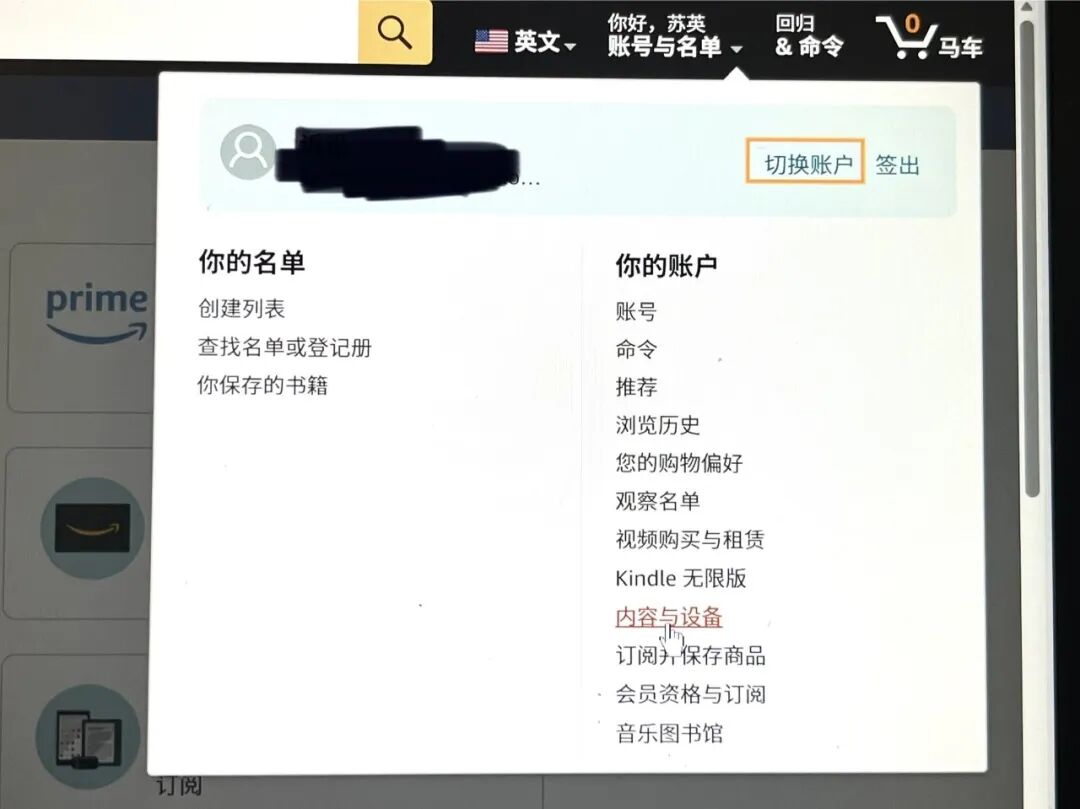
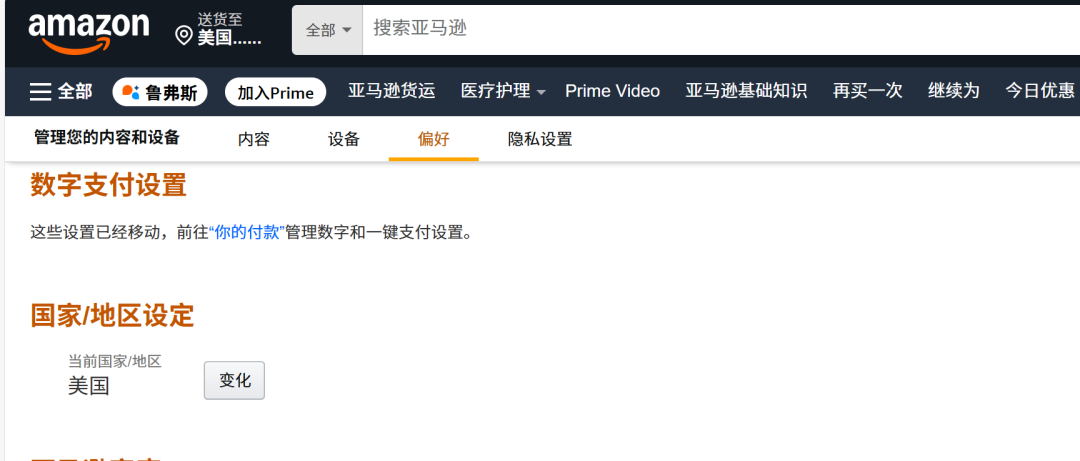
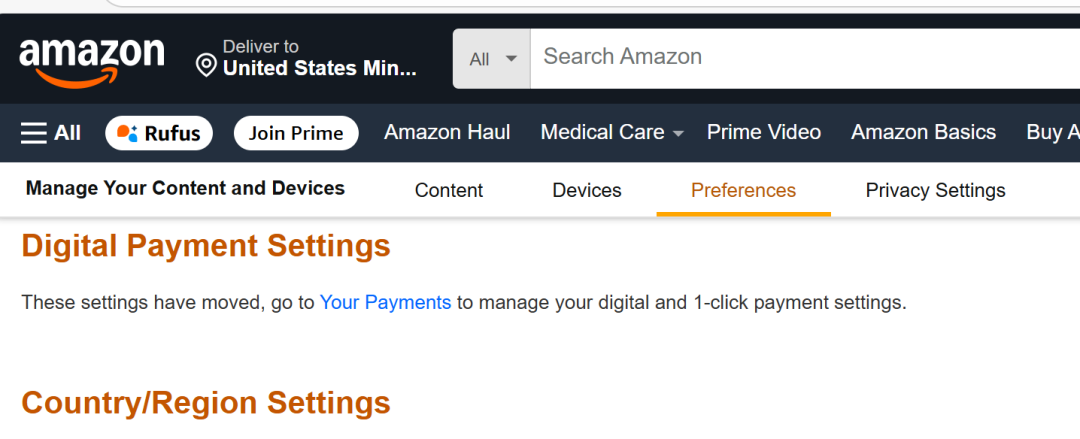
点击“内容与设备”(Devices)→“偏好”(Preferences)→下拉界面到最后的“个人文档设置 ”↓
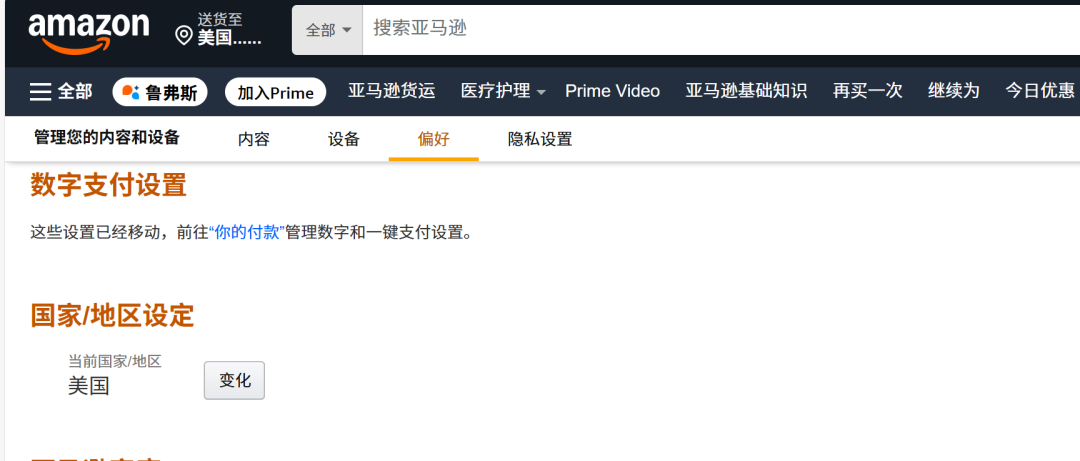
中文界面
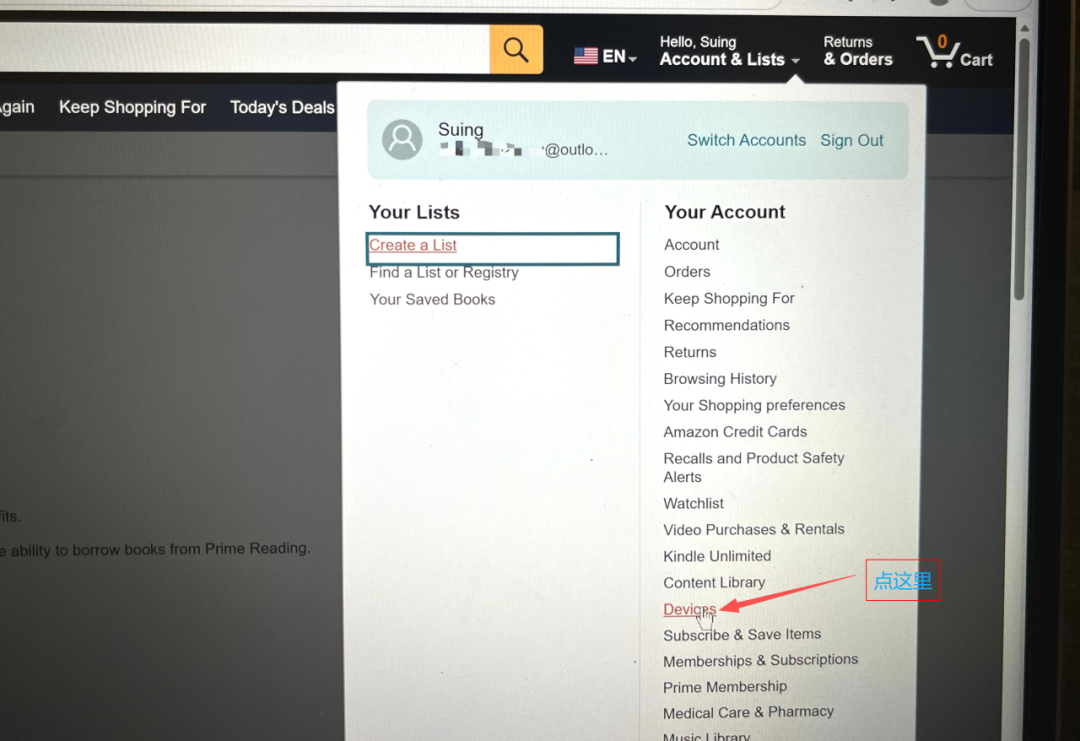
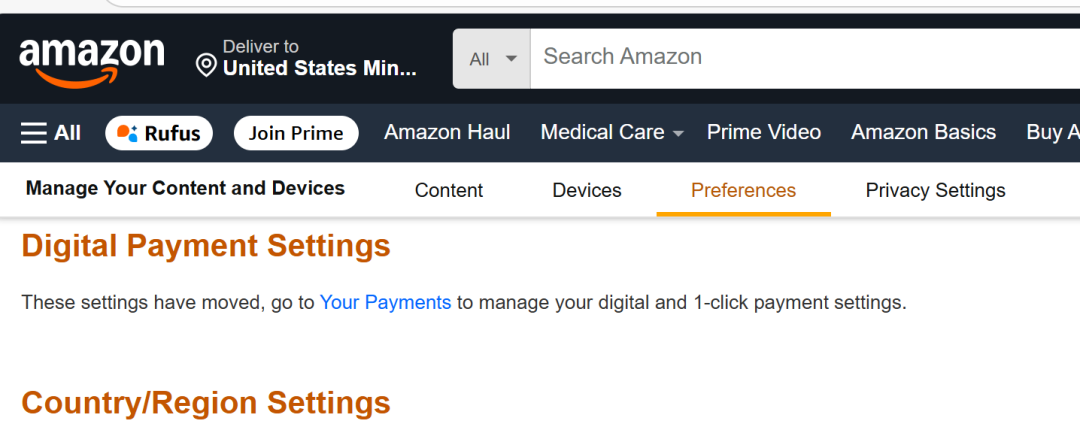
英文界面
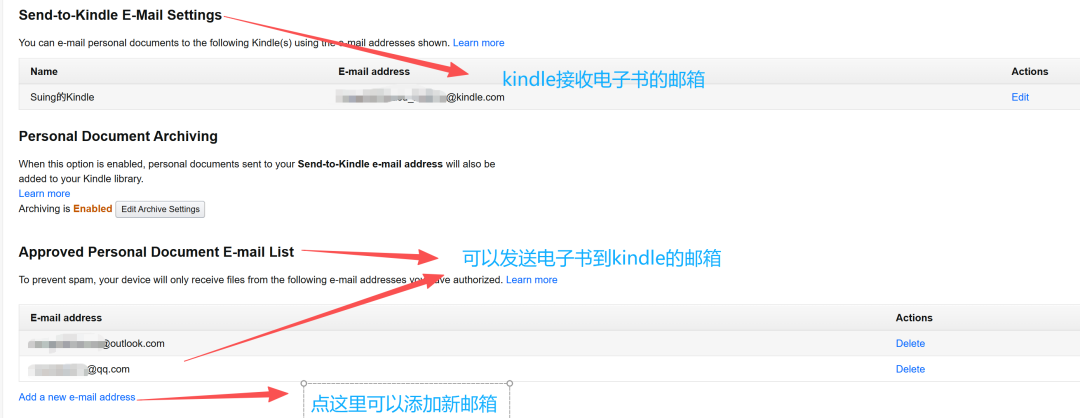
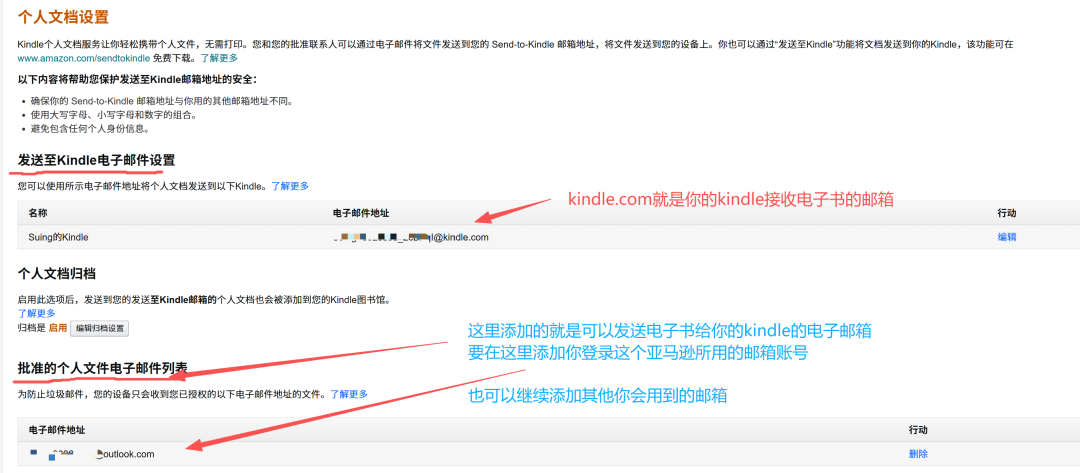
在最后一行“批准的个人文件电子邮件列表”里添加你登录亚马逊官网所用的邮箱账号,也可以继续再添加你其他常用的邮箱账号,后面QQ邮箱的方法也会用到这个步骤。
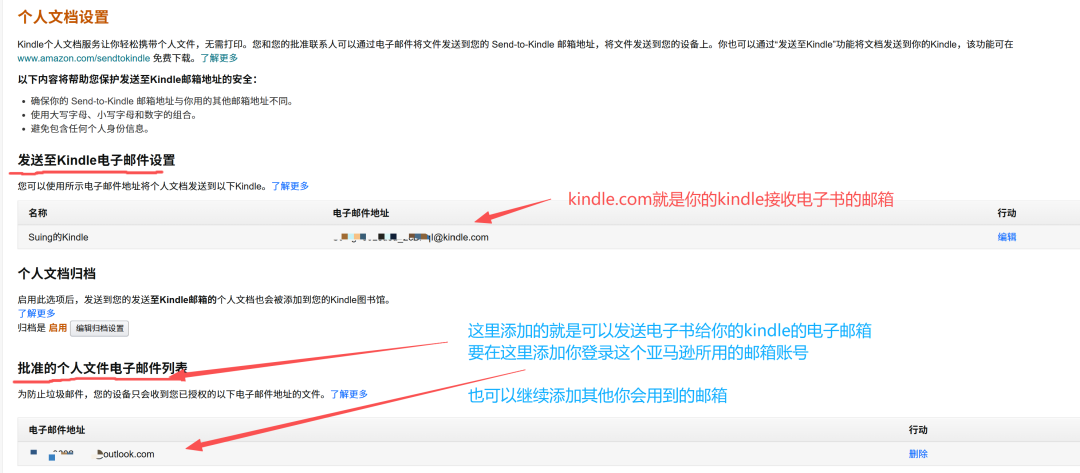
中文界面
英文界面
④在Send to Kindle 界面传书
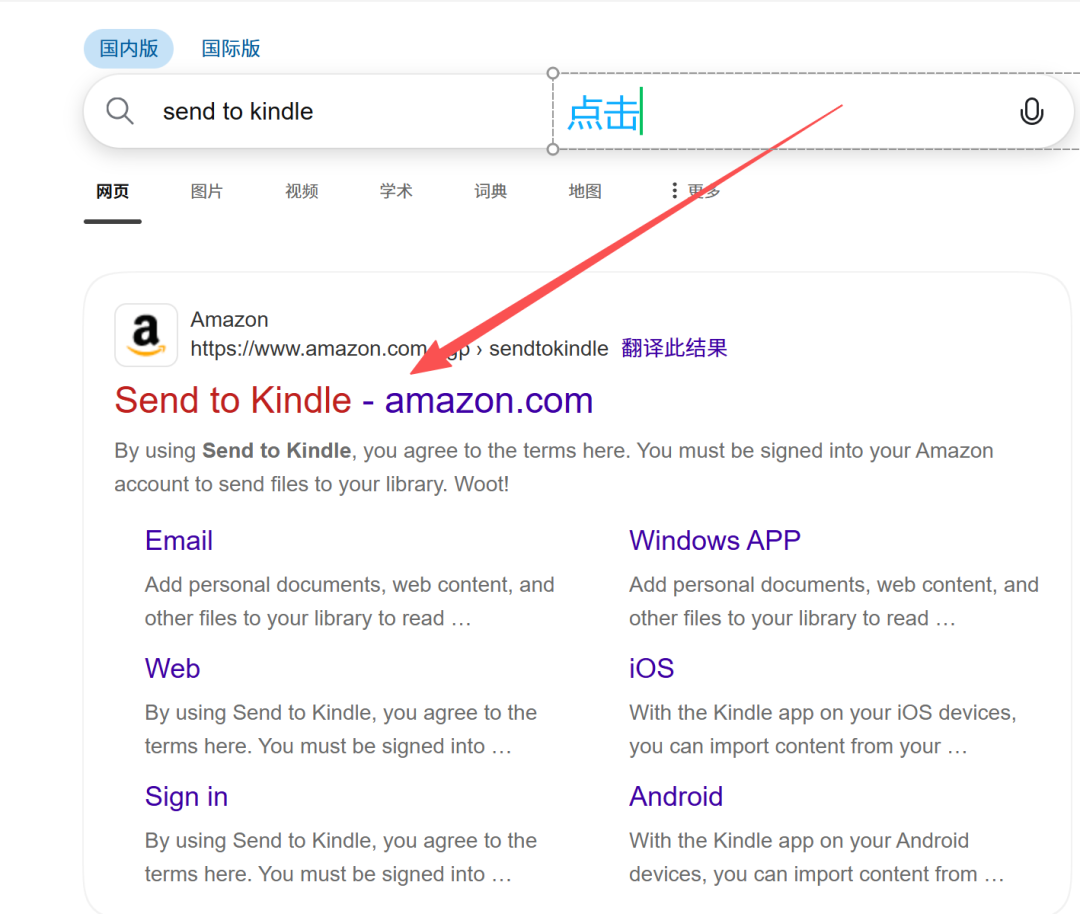
如果已经在亚马逊界面了,在亚马逊搜索框搜索“send to kindle”,也可以直接在浏览器搜索send to kindle,第二种方式简单一点。先介绍第二种。
直接在浏览器搜索send tokindle就好了,点击打开的网页就是以后传书的界面,在亚马逊官网搜索 send to kindle出来的也是这个界面可以选择固定标签页,以后就不用再搜索send to kindle了↓
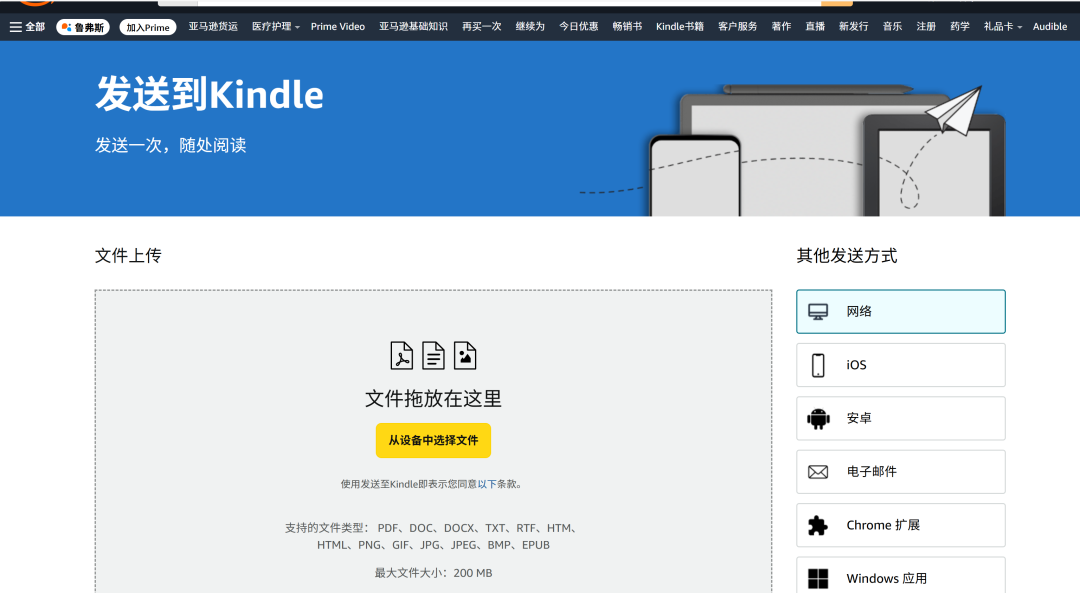
这个就是传书的界面了
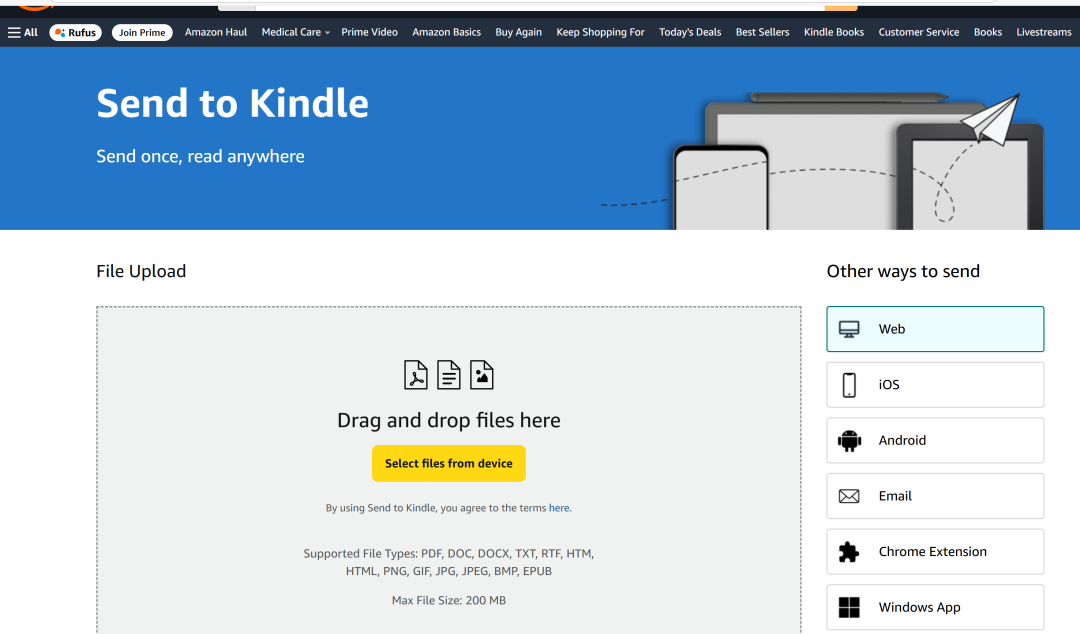
英文界面
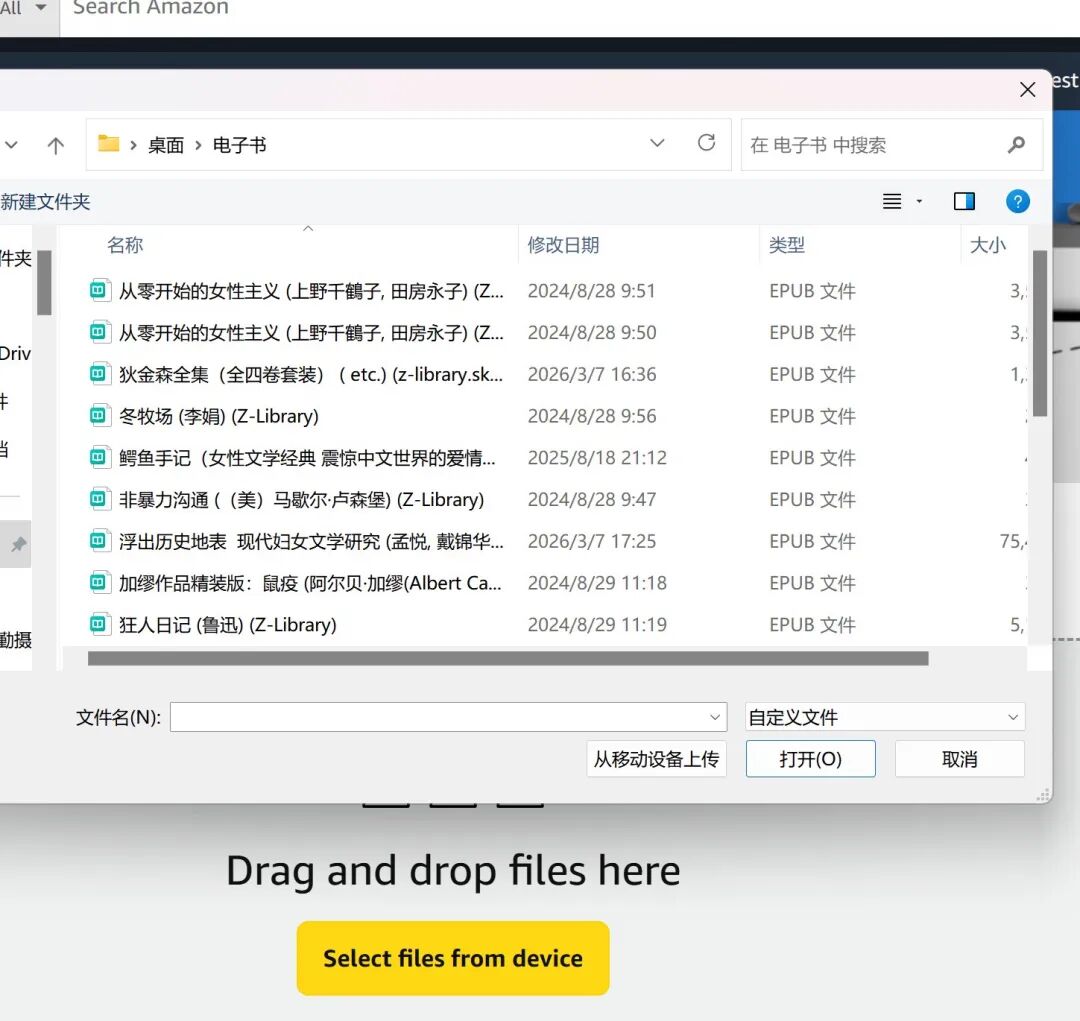
点击黄色按钮就可以把电子书文件传上去了,也可以直接把文件从桌面拖动进去↓
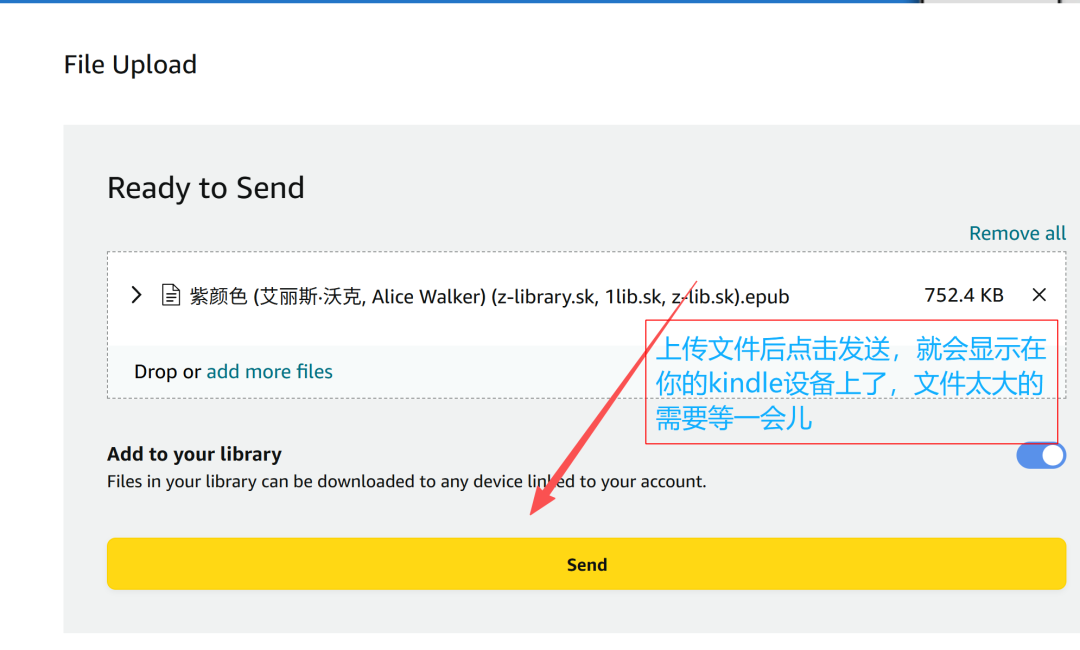
上传好文件后点击发送即可 ↓
如果是在亚马逊官网,也是在搜索框搜“send to kindle”,会显示如下界面,点击“发送到kindle”↓
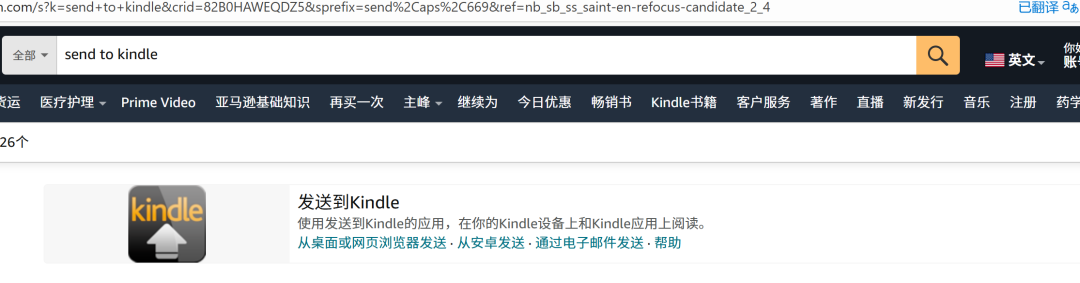
中文界面
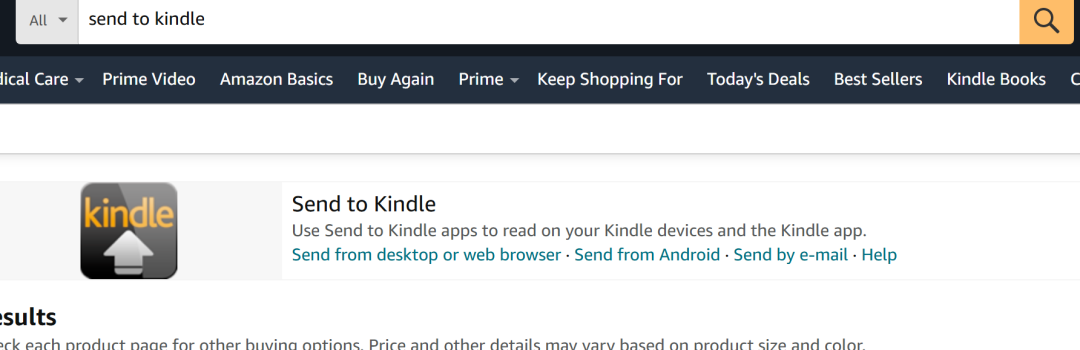
英文界面
再点击发送到kindle网页版这里蓝色下划线的“发送到kindle”↓

中文界面
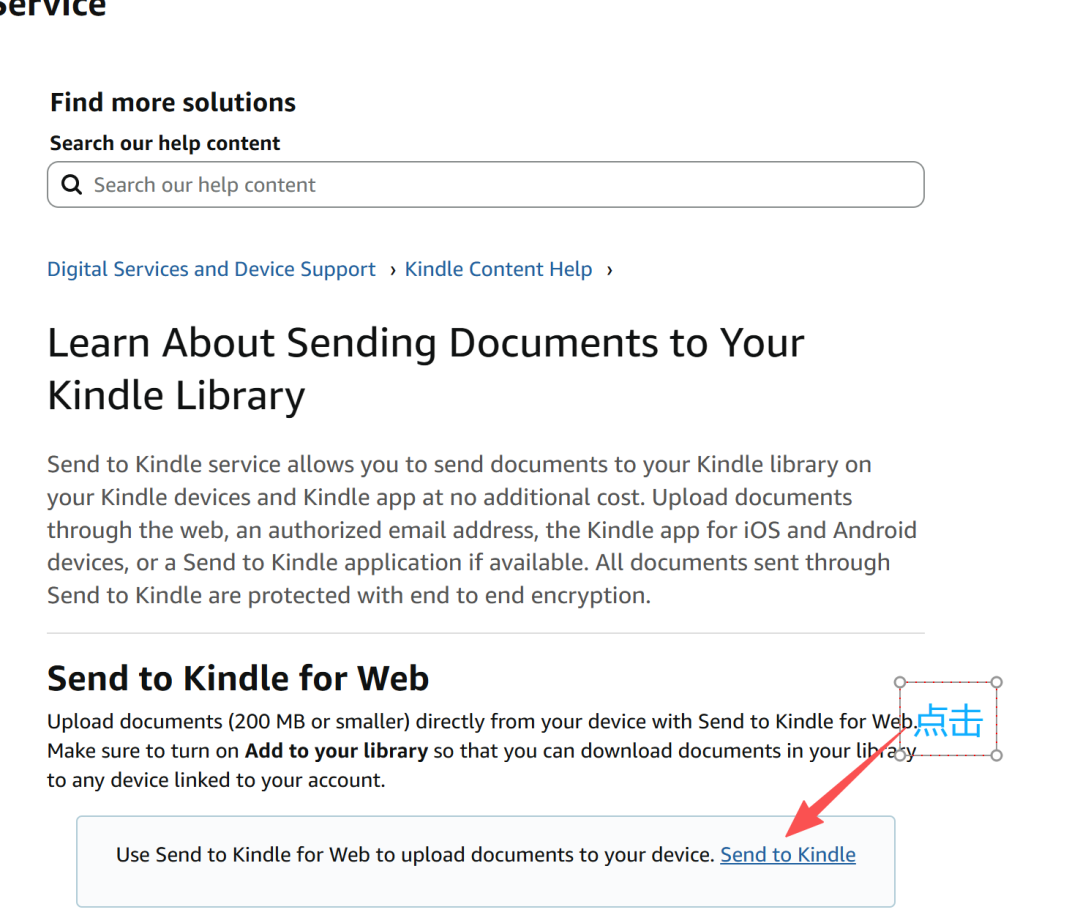
英文界面
最后也都是来到这个传书界面↓
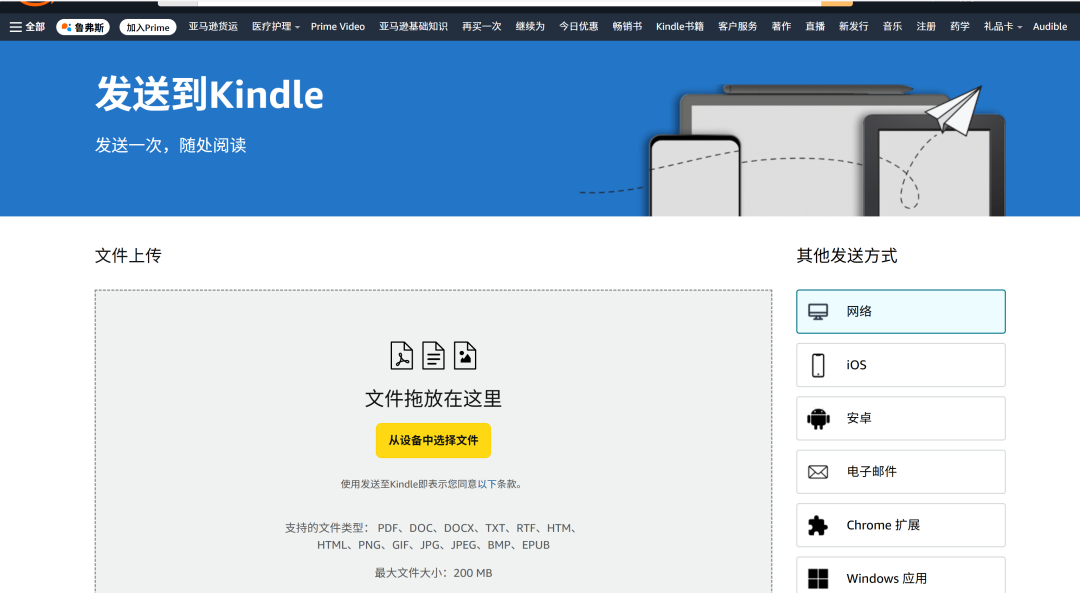
QQ邮箱
用邮箱账号传书的方法,也不一定要是QQ邮箱,只要是你常用的邮箱都可以,QQ邮箱就相当于可以发送电子书给你的kindle的发件人,你的kindle设备里显示的邮箱账号就是接收电子书的收件人。
这个方法就能直接在手机登录邮箱,把手机里的文件传给kindle。
邮箱传输支持的格式有:EPUB、PDF、TXT,不支持传MOBI、AZW3格式。
1.添加信任邮箱
还是和前面的方法一样,可以回到前面去查看,如果前面步骤已经添加了就可以省略这个步骤,直接看下一个步骤。
用你注册美亚账号kindle的邮箱,登录亚马逊官网。
点击“内容与设备”(Devices)→“偏好”(Preferences)→下拉界面到最后的“个人文档设置 ”,在最后一行“批准的个人文件电子邮件列表”里添加你的QQ邮箱,也可以是其它你常用的邮箱。
左右滑动查看更多

2.登陆你的邮箱账号
我这里以QQ邮箱为例,就是写邮件,在附件里把你的电子书文件上传上去↓
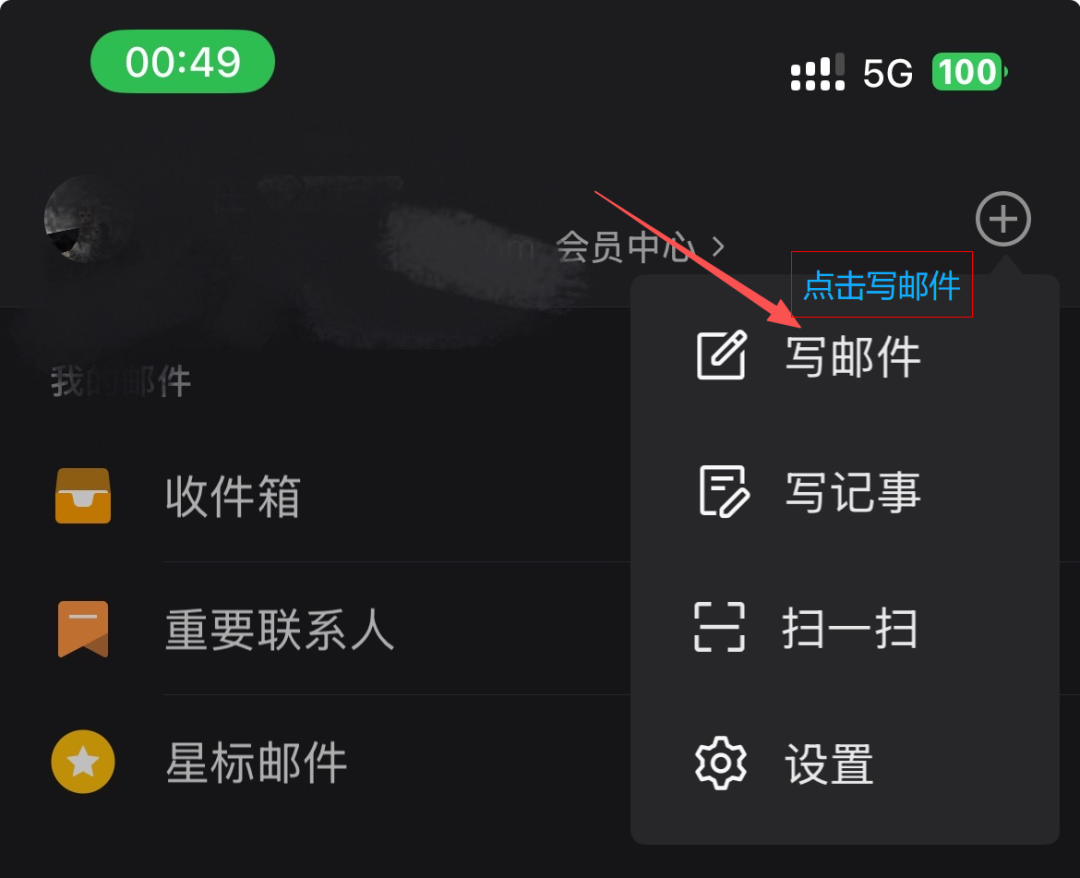
收件人输入你的kindle设备里显示的邮箱账号,如果不知道kindle邮箱账号是什么就看下一张图。
(可以把kindle的邮箱账号添加到你的联系人列表 ,下次就不用再输入kindle邮箱账号。)↓

在你的kindle设备里,“您的账户”的最后一行,“发送至kindle电子邮件地址”那里以“KINDLE.COM”结尾的就是收件人。kindle就是由这个邮箱账号来接受文件的↓
也可以在亚马逊官网里点击“内容与设备”查看kindle邮箱地址,复制粘贴,不会出错↓
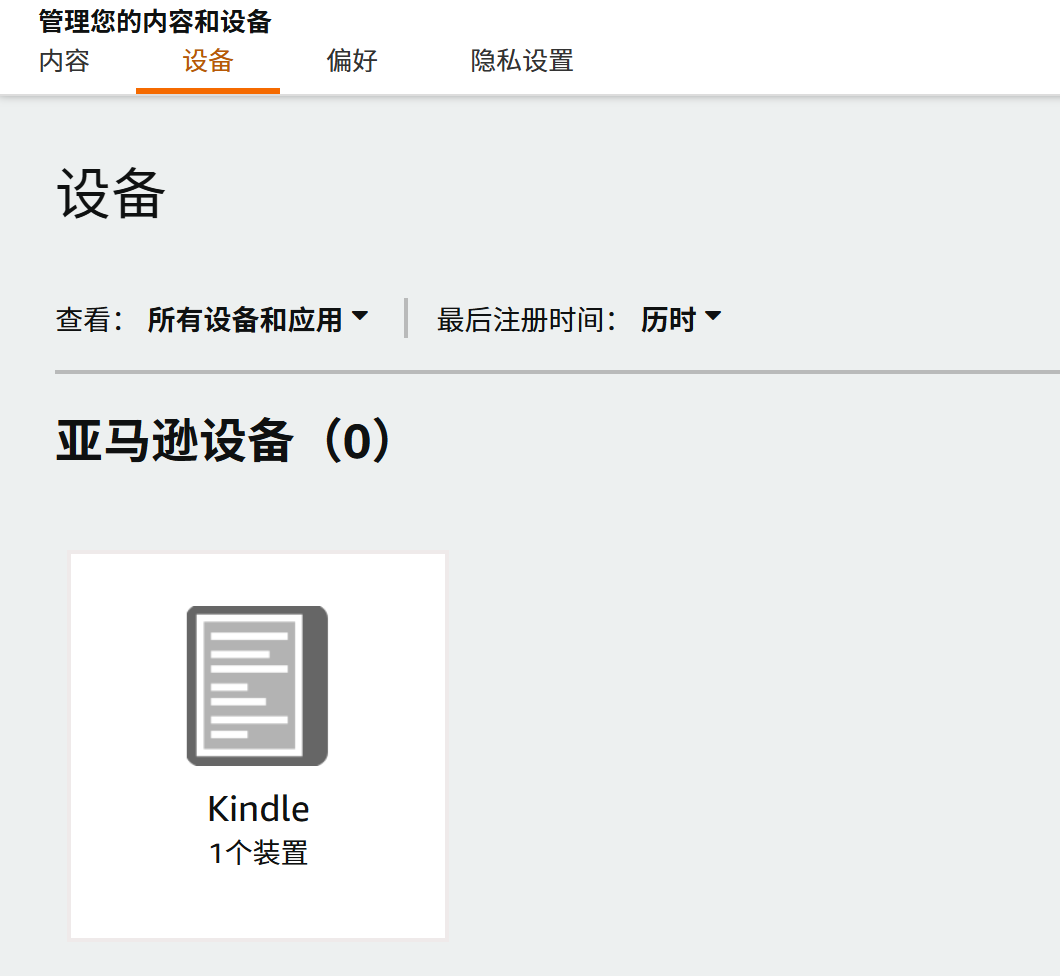
点击“kindle”后进入的界面,这里的“电子邮件”就是你的kindle的邮箱账号,就是收件人,复制粘贴邮件地址↓
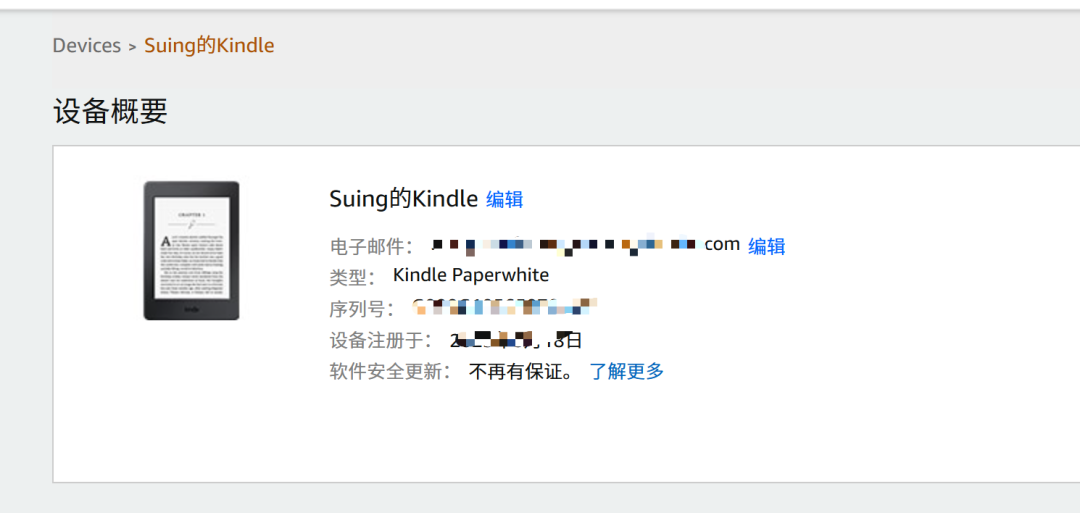
如果发送文件后 kindle还是没有显示 :
①先稍等一会儿
②检查收件人邮箱是否正确
(我一开始手动输入的邮箱是错误的,是在亚马逊官网查看kindle电子邮件复制粘贴后,才有显示的)
③查看是否在亚马逊官网添加了信任邮箱,已添加的邮箱才能成功发送文件到kindle
④检查kindle是否联网
数据线
这个方法只需要把kindle和电脑用数据线连接,不必是专用的kindle数据线,只要有传输功能的数据线都可以,连接到电脑里的kindle设备就相当于一个U盘,你可以在里面上传、删除文件。
数据线传输不能识别EPUB格式,AZW3格式传输不容易卡,且能换字体,TXT格式会比较卡,MOBI格式换不了字体。
1.kindle连接电脑
连接电脑后kindle设备会弹出“USB驱动器模式”,如果没有弹出,那就换根线。
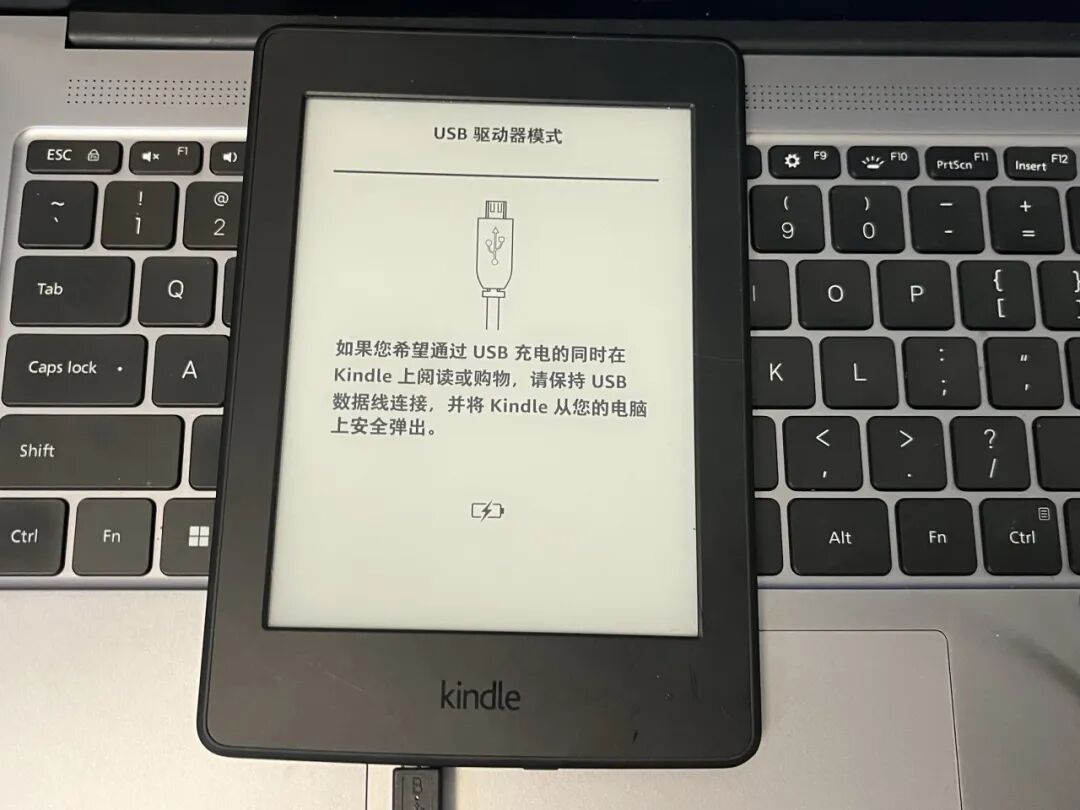
2.打开kindle文件夹
确认连接好后,在电脑里和C、D盘的同个地方就会看见“Kindle”的文件夹↓
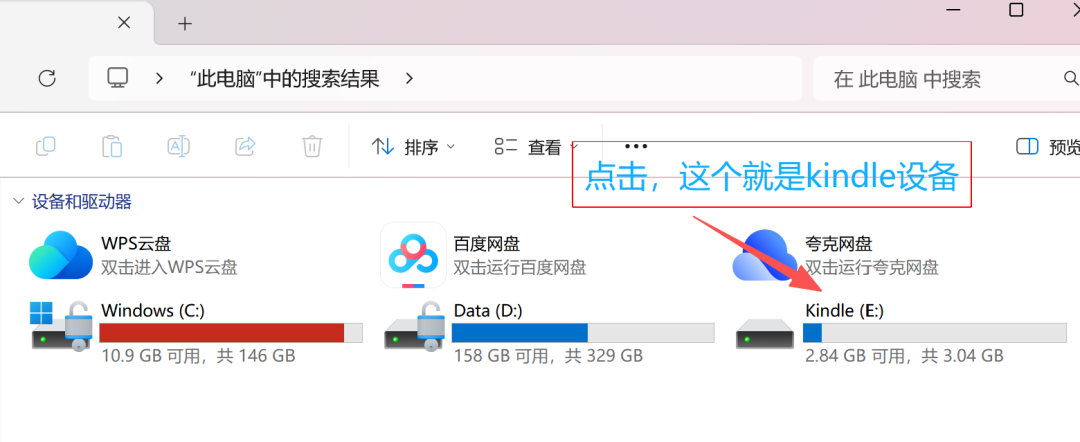
点击“documents”,把你要传的电子书拖到这个文件夹里面就可以,传输完毕选择弹出kindle即可。
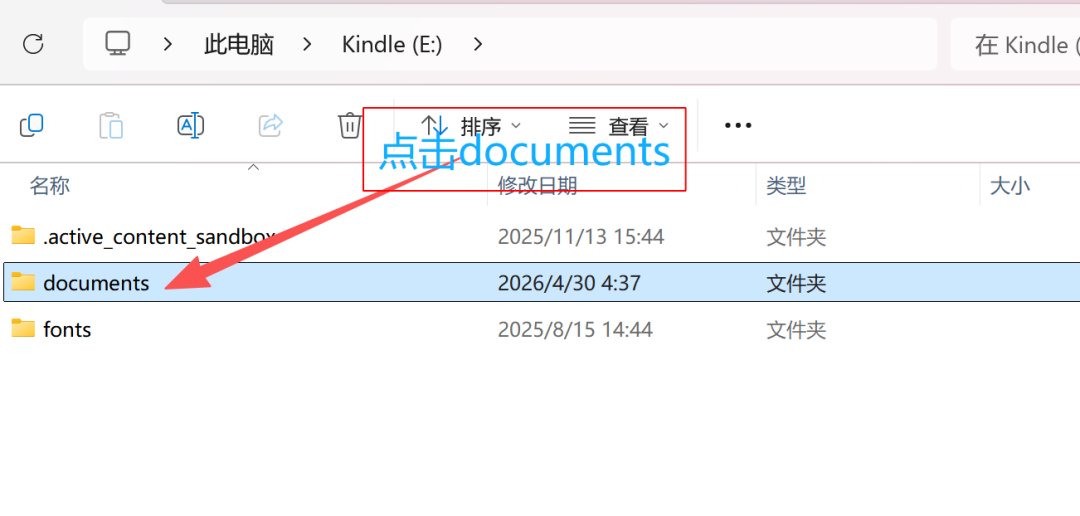
documents文件夹里就是你的kindle设备里有的文件,你也可以在这里选择删除你不要的文件。
如果有使用微信读书的读者,想要在kindle上同步阅读微信读书的书籍,也可以联网在浏览器打开微信读书。因本推文篇幅太长,如有需要我下篇推文再介绍,有疑问也可以直接在评论区留言,大家都可以看到。
Original link: https://mp.weixin.qq.com/s/wzRhY7kOgBG4bts3nIt9XQ
Kindle User Guide
This article only introduces the Kindle book transfer methods I have personally used. If there are other methods or questions, feel free to leave comments. There are also many related introductions on Xiaohongshu.
(I set up Kindle book transfer a long time ago, so I don't remember many of the steps very well. If anything is written incorrectly, welcome everyone to point it out in the comments!)
Below, I will introduce 3 methods for transferring books to Kindle: Amazon's Send to Kindle, QQ email, and data cable.
The Kindle needs to be connected to the internet during book transfer. Once the book is loaded, you can disconnect from the network to read it.
Send to Kindle
My most frequently used method is Send to Kindle. I find it very convenient. I usually download e-books on my computer from websites like Z-library and Anna's Archive (these ebook websites were introduced in my previous post). After downloading, I can directly drag and drop the file into Send to Kindle to send it to my Kindle.
How to obtain free ebook resources?
The file size cannot exceed 200MB. Supported formats include: EPUB, PDF, TXT, DOC, DOCX, RTF, HTM, HTML, PNG, GIF, JPG, JPEG, BMP. MOBI and AZW3 formats are not supported.
This method requires some initial setup, such as registration and adding email addresses, which can be a bit troublesome. However, once done, it's a permanent solution! In the future, you only need to open the Send to Kindle app, drag the ebook into it and click upload! Follow the steps below one by one.
1. Register a US Amazon Account
① First, you need to log out of your Chinese account on the Kindle device.
Go to Settings -> Your Account -> Log out of device.
(Before logging out of the original account, please back up the data, as some users report that the bookshelf may disappear after logging out).
The email for the Chinese account ends with .cn, while the US account ends with .com. Although Kindle has withdrawn from the Chinese market, Amazon still operates here. Therefore, you need to change the Kindle account to the US region.
The email address shown at the bottom of the "Send to Kindle email address" section, ending in .com, is the inbox for your Kindle to receive ebooks.
Understanding this makes everything much easier, including sending ebooks from other email accounts to Kindle — you simply need to use this email as the recipient!
② Re-register the account on the Kindle device. Select the country as the United States. You can use your Chinese phone number for registration. The rest of the process is similar to the original registration. (This is done directly on the Kindle reader device).
Enter the email account (do not use a phone number) -> Create account -> Select the region as USA -> Next -> Create your Amazon account -> Enter a new email address (do not use an email that was previously registered with Kindle) -> Add phone number -> Select CN+86 -> Skip adding a card.
2. Log in to the Amazon Website
①First, set the Kindle's language to American English↓
② Log in to the Amazon US website.
You do not need a VPN to access the Amazon website.
Log in using the email account you used to register the Kindle. You will see your Kindle listed under "Content and Devices".
I translated the website interface using the browser's built-in translation, so the Chinese characters may look slightly different for everyone. If you cannot find the options, just click around — the context should still be clear.
③ Add a trusted email address.
Click "Content and Devices" (Devices) -> "Preferences" -> Scroll down to the bottom and select "Personal Document Settings":
Chinese interface
English interface
In the last section, "Approved Personal Document Email List", add the email account you used to log in to the Amazon website. You can also add other frequently used email accounts, which will be useful for the QQ email method described later.
Chinese interface
English interface
④ Upload books using the Send to Kindle interface.
If you are already on the Amazon website, you can search for "send to kindle" in the search bar. Alternatively, you can search for "send to kindle" directly in your browser's search engine — this second option is simpler. I will explain the latter first.
Simply search for "send to kindle" in your browser, and the page that opens will be the interface you use to upload books. You can also reach this interface by searching "send to kindle" in the Amazon website, and then clicking "Send to Kindle". You can save this page as a bookmark for future use.
This is the book upload interface:
English interface
Click the yellow button to upload the ebook file, or simply drag and drop the file from your desktop into the designated area:
After uploading the file, click "Send":
If you are doing this from the Amazon website, search for "send to kindle" in the search box. The result will look like this: click on "Send to Kindle":
Chinese interface
English interface
Then click on the blue underlined text "Send to Kindle" in the "Send to Kindle Web" section:
Chinese interface
English interface
Finally, you will come to the book transfer interface↓
QQ Email
Sending books via email isn't limited to QQ; you can use any email account you prefer. The sender is your email, while the recipient is the email address registered to your Kindle device.
This method allows you to log into your email on your phone and send files directly to your Kindle.
The email transfer supports the following formats: EPUB, PDF, TXT. It does not support MOBI or AZW3.
1. Add a trusted email address
This step is similar to the one described for Send to Kindle. If you have already completed this step during the previous method, you can skip it.
Log in to the Amazon website using the email account you registered for your US Kindle account.
Go to "Content and Devices" (Devices) -> "Preferences" -> Scroll down to "Personal Document Settings". In the "Approved Personal Document Email List", add your QQ email address (or any other email you wish to use).
Swipe left and right for more images
2. Log into your email account
Using QQ email as an example, the process involves writing an email and attaching the ebook file.
The recipient field should contain your Kindle's email address. If you don't know it, check the next image. (It's a good idea to add this address to your contacts for future use).
① Wait a few minutes for the transfer to complete.
② Verify that the recipient email address is correct.
③ Check if the sender's email is listed as a trusted address on the Amazon website.
④ Ensure your Kindle is connected to the internet.
Data Cable
This method involves connecting the Kindle to your computer with a data cable. You don't need a specific Kindle cable — any USB cable with data transfer capability will work. Once connected, the Kindle appears as a drive on your computer, allowing you to upload or delete files.
The data cable method cannot read EPUB files. AZW3 files are stable and allow for font changes, while TXT files may be slow to load, and MOBI files do not support font changes.
1. Connect the Kindle to your computer
After connecting, the Kindle screen should display "USB Drive Mode". If it doesn't, try a different cable.
2. Open the Kindle folder
Open the "documents" folder and drag your ebook file into it. You can also use this folder to delete unwanted books.
If you use WeChat Reading (WeChat Du), you can synchronize books to your Kindle. To learn how, check out my next post, or feel free to ask in the comments for more details.
The documents folder contains all the files on your Kindle device, and you can also delete files you don't need here.
For readers who use WeChat Reading, if you want to sync your books to your Kindle, you can also open WeChat Reading in a browser by connecting to the internet. Since this post is very long, I may introduce it further in the next one if needed. You can also leave a message in the comments section with any questions, and everyone can see them.