
作为Kindle重度用户,设备连数据线电脑始终识别不了,Kindle 退出中国后一直没法传本地新书。亲测了 calibre 局域网共享传书的方法,无需数据线和注册美亚账户,只需要下载一个calibre就能成功传书,
我发现网上关于这个方法的详细内容不多,很多人和我一样,遇到了Kindle连数据线识别不了的问题,所以就把这个完整的操作步骤分享出来,给大家做个参考。
calibre局域网传书完整步骤
calibre是一款免费开源的电子书管理软件,主要做电子书的格式转换、书库管理,功据功能很强大,但目前我只用过格式转换和这次用到的局域网共享功能。
步骤1、下载安装calibre
calibre下载地址:https://calibre-ebook.com/download。官网服务器在国外,下载速度可能非常慢,可以找国内靠谱的渠道下载。
步骤2、添加电子书
可以通过zlib或者其他渠道下载好要传的书籍。这种无线传书方式支持的格式不多,需要先转成.awz或者.mobi。
操作步骤:

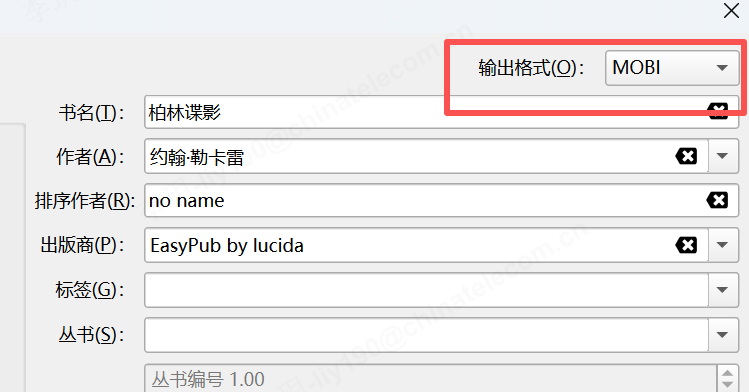
步骤3、启动calibre局域网内容服务器
关键前提
你的电脑和Kindle必须连接同一个WiFi。有两个注意事项:
1.部分老机型Kindle比如我的KPW3只能支持2.4G,所以电脑也必须连接到2.4G频段
2.不能使用手机热点(具体原因不清楚,总之我用手机开热点给电脑和Kindle连接,无法连接局域网)
操作步骤:
2.再次点击【连接与共享】,就能看到你的专属局域网地址,格式一般为192.168.**.**。
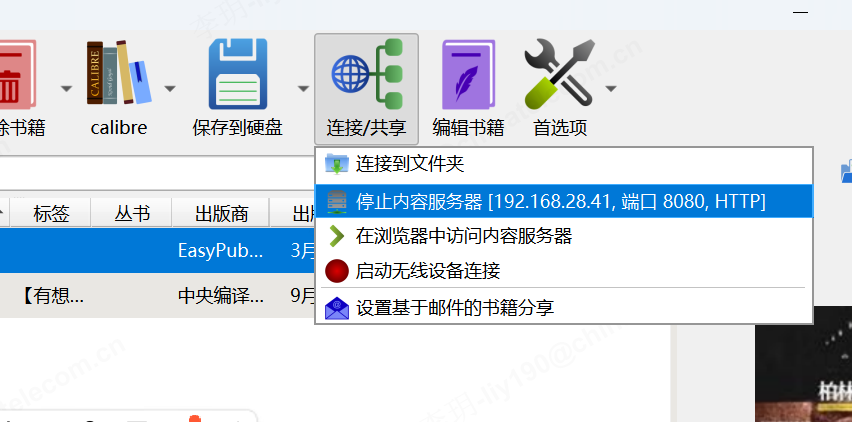
步骤4、Kindle端下载书籍到本地
操作步骤:
1.点击右上角三个点,打开【网页浏览器】
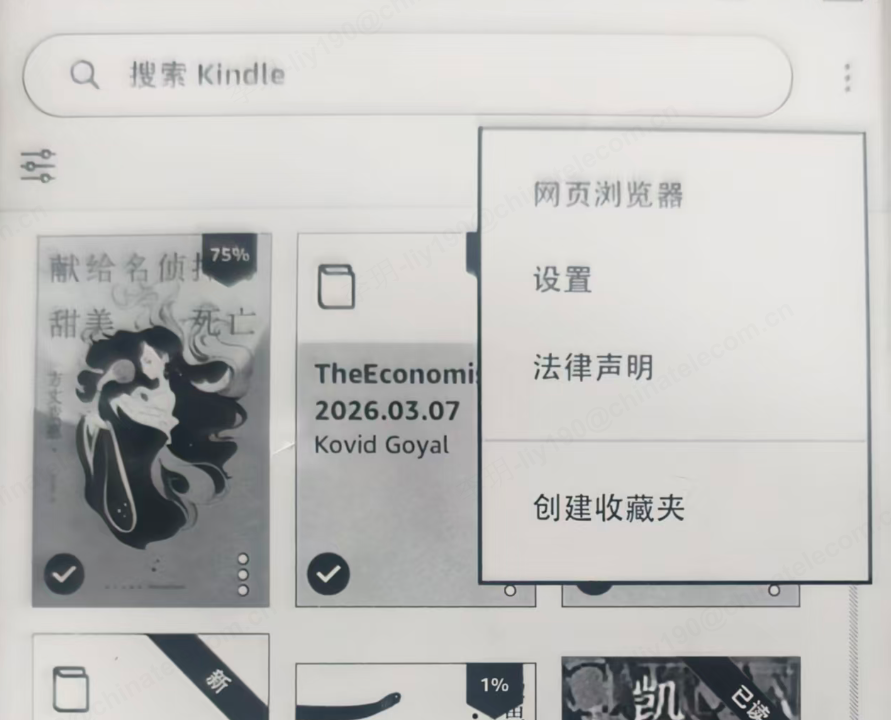
2.在地址栏输入刚才的局域网地址和端口号,并加上前缀http://或者https://和后缀/mobile。(如http://192.168.28.41:8080/mobile)。
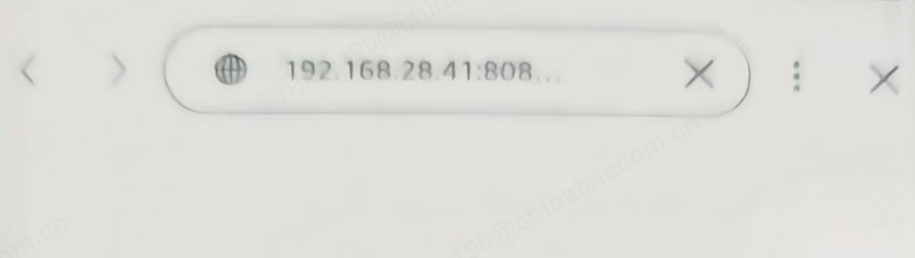
3.访问地址后,就能看到calibre的数据,找到要下载的书籍,点击对应的azw3/mobi格式的下载按钮,书籍就会自动下载到Kindle本地。注意:一定要点按钮这里,点击其他地方都没有效果。
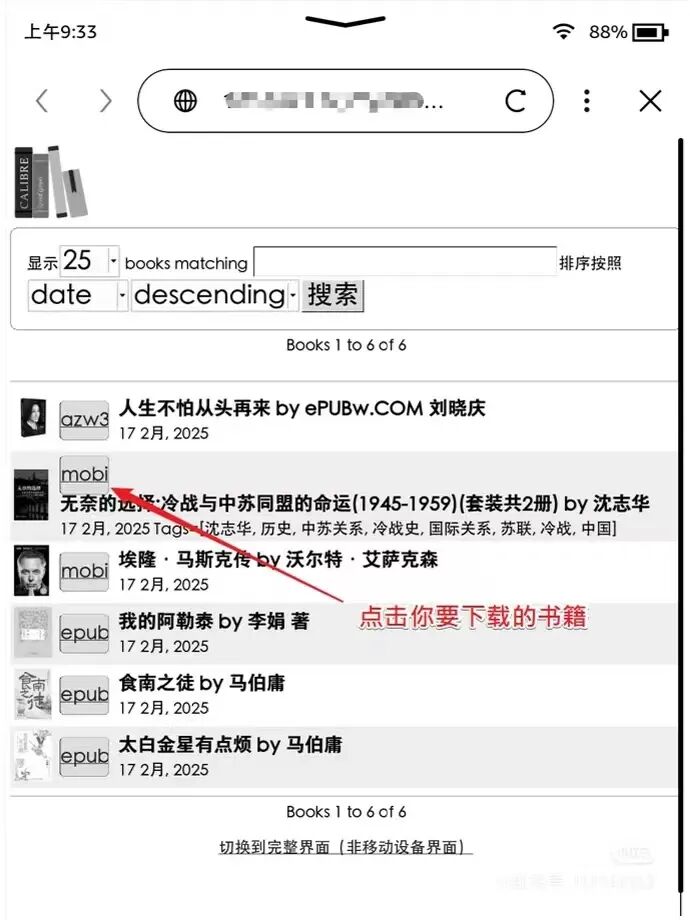
4.下载完成后,回到Kindle主页,就能找到这本书了。
这个方法有个小不足:下载的书籍都是没有封面的,目前我还找不到解决方案,但不影响正常阅读。对我来说,能实现本地传书,才是最重要的。希望后面能找到解决封面问题的方法。
方法1、数据线直连传书
这是Kindle原生的传书方式,网上也有大量教程。其实非常简单,就是把Kindle当U盘。
操作步骤:
1.用支持数据传输的USB线(现在很多线都是纯充电线,不具备传输功能)将Kindle连接到电脑。
2.电脑识别出Kindle盘符后,进入【documents】文件夹。
3.将azw3、mobi、TXT、PDF格式的电子书,直接拖拽到这个文件夹里。
注意:这样同样会有封面缺失的问题,可以找到解决方案。
方法2、微信读书网页版
适合在有网环境下在线阅读,不用提前安传书。操作方法:打开Kindle浏览器,输入地址r.qq.com,用微信扫码登录,就能同步你的微信读书书架,阅读进度和手机端完全同步。
缺点:只有最基础的阅读功能,划线、评论、听书等功能全都没有;翻页必须依靠手动点右下角的【下一页】,操作不够流畅;设备续航会比读本地书差。
2017年我入手了一台kindle,到现在用了快 9 年,我每年稳定读 70 本书,其中 80% 以上都是在这台 Kindle 上完成的。这么多年用下来,除了几次没带保护套磕伤了屏幕,设备本身没出过任何问题,感觉可以用到亚马逊倒闭。
2023年kindle官宣退出中国,并将于2024年6月30日停止Send to Kindle 服务。而在这之前我就已经丢掉了原装数据线,先后买了3根数据线连接电脑都没有反应,一直依赖send to kindle传书。所以在最后一天到来之前,我往Kindle里面传了100多本书,之后这两年,我基本是在有网的环境(比如办公室),用Kindle自带的浏览器登录微信读书网页版看书;没网的环境(比如地铁上)就看本地提前存的书。
本来都做好打算,等本地的书看完,就换国产墨水屏设备了。前阵子有天晚上坐地铁,手里正在读的书读不进去,就翻了本本地存的推理小说。读的时候突然有点焦虑:这些消遣的书已经库存不足,感觉撑不到其他书全部读完的那一天了。
回家之后我就开始找办法,想让我的Kindle能重新传本地书。网上大部分教程都是用数据线连电脑传书,我翻出之前的3根数据线挨个尝试,甚至还尝试修复驱动,都毫无反应。
就在我准备放弃的时候,看到了一个通过calibre局域网共享给Kindle传书的教程,看着可行,就试了试。没想到一次就成功了。这是Kindle退出中国一年多来,我的设备第一次新增了本地书籍,当时特别开心,这台Kindle又能续命很久了。
Foreword
As a heavy user of Kindle, I have always been unable to get my computer to recognize the device when connecting via data cable. After Kindle withdrew from China, I couldn't transfer new local books. I successfully tested the method of using calibre to share books via local network. It doesn't require a data cable or a U.S. Amazon account; simply downloading calibre is enough.
I noticed that there isn't much detailed information about this method online, and many people, like me, encountered the problem of Kindle not being recognized via USB. That's why I'm sharing these complete operational steps for everyone's reference.
Detailed Steps for Local Network Book Transfer with calibre
calibre is a free, open-source e-book management software primarily used for format conversion and library management. Its functionality is very powerful; however, I've only used its format conversion and the local network sharing feature mentioned here.
Step 1: Download and Install calibre
Download address: https://calibre-ebook.com/download. Since the official server is abroad, the download speed may be very slow. You can look for reliable domestic channels to download.
Step 2: Add Electronic Books
You can download the books you want to transfer via zlib or other channels. This wireless transfer method supports few formats, so you need to first convert them to .awz or .mobi.
Operational Steps:
1. Open calibre, click on the top-left 【Add Books】 to import the downloaded e-books into calibre.
2. Select the books to be converted, click the top 【Convert Books】, and in the top-right 【Output Format】, choose azw3 or mobi.
3. Click 【OK】, the format conversion usually completes within a few seconds. You can view the progress in the lower-right corner.
Step 3: Start the calibre Local Network Content Server
Key Prerequisites
Your computer and Kindle must be connected to the same WiFi. There are two precautions:
1. Some older models, like my KPW3, only support 2.4G, so the computer must also be connected to the 2.4G band.
2. You cannot use a mobile hotspot (not sure why, but connecting via mobile hotspot failed to connect to the local network).
Operational Steps:
1. In the calibre top menu bar, find 【Connection and Sharing】, and click 【Start Content Server】 from the drop-down menu.
2. Click 【Connection and Sharing】 again to see your exclusive local network address, typically in the format 192.168.**.**.
Step 4: Download Books to Local Kindle
Operational Steps:
1. Click on the three dots in the top-right to open 【Web Browser】.
2. Enter the local network address and port number in the address bar, prefixed with http:// and suffixed with /mobile (e.g., http://192.168.28.41:8080/mobile).
3. After accessing the address, you'll see the calibre data. Find the book to download and click the corresponding azw3/mobi format download button. The book will be automatically downloaded to the Kindle. Note: You must click the button; clicking elsewhere has no effect.
4. After downloading, return to the Kindle home page and you’ll find the book.
A small drawback of this method is that the downloaded books lack covers (I haven't found a solution for this yet), but it doesn't affect reading. For me, successfully transferring local books is the most important thing. I hope to find a way to solve the cover issue later.
Two More Common Ways to Transfer Kindle Books
Method 1: Direct USB Cable Transfer
This is the native way to transfer books to Kindle, as described in many online tutorials. It’s very simple—just treat the Kindle like a USB flash drive.
Operational Steps:
1. Use a USB cable that supports data transfer (many modern cables are purely for charging) to connect the Kindle to the computer.
2. The computer will show a Kindle drive icon; enter the 【documents】 folder.
3. Drag and drop azw3, mobi, TXT, or PDF e-books directly into this folder.
Note: This also has the cover missing problem, for which solutions exist.
Method 2: WeChat Reading Web Version
Suitable for online reading when internet is available. No prior book transfer is needed. Operation: Open the Kindle browser, enter r.qq.com, scan the QR code with WeChat to log in, and you can sync your WeChat Reading bookshelf — reading progress is fully synchronized with your mobile.
Disadvantage: Only basic reading features are available; functions like highlighting, commenting, or listening are absent. Turning pages requires manually clicking the bottom-right 【Next Page】, which isn’t smooth. Device battery life is shorter than for local books.
In Conclusion
I bought my Kindle in 2017. Over the past nearly 9 years, I’ve read an average of 70 books per year, with over 80% on this device. It’s been reliable — no hardware issues beyond a few screen scratches from dropping without a case.
In 2023, Amazon announced Kindle’s exit from China, stopping Send to Kindle service by June 30, 2024. Before that, I lost my original data cable and three subsequent cables failed to recognize the device, forcing me to rely on Send to Kindle. So before the deadline, I loaded 100+ books onto my Kindle. For the past two years, I read online via WeChat Reading web version while connected, and local books when offline (e.g., on subway).
I had planned to switch to a domestic e-ink device once I finished the stored books. But recently, while reading on the subway, I picked up a crime novel — and realized my supply of light reading was dwindling and might run out before I finished the serious ones.
So I searched for ways to re-enable local book transfer. Most guides involved USB cables, which didn’t work for me despite trying multiple cables and driver fixes.
Then I found the calibre local network sharing tutorial. On my first try, it worked — my Kindle received its first local book in over a year since Amazon’s withdrawal. I was overjoyed; my Kindle had been extended indefinitely.
Original link: https://mp.weixin.qq.com/s/PiNDQ6Hd_p_-t70_mB2QPw